
AI
Your notes, your AI, your choice.
Snowfox Notes doesn’t ship its own AI. Through the open Model Context Protocol (MCP) you connect the one you already use – Claude or ChatGPT, for example.

How it works
Your AI comes to your notes.
An admin switches on MCP, then each account connects its own client. The AI works with that account’s rights.
Your connection
Your AI
Claude, ChatGPT or a similar client.
MCPModel Context Protocol – an open standard
Your instance
Snowfox Notes with your notes. The AI only sees what your account sees.
Worth knowing
What the AI reads goes to its provider
Whether you trust that provider is up to you – which is why it’s your decision, not the app’s.
No built-in AI
No AI sees your notes unless you connect one.
Many note-taking apps now come with AI built in. Snowfox Notes doesn’t – on purpose. Instead of every app bringing its own AI, you bring your AI to your data – and decide for yourself whether and when.

Your data
What it means for your data.
Off until someone switches it on
MCP stays off until an admin switches it on. While it’s off, no AI app gets in.
Your account’s rights
The AI only sees what your account sees. That goes for folders only certain people can see, too.
Read only or also change
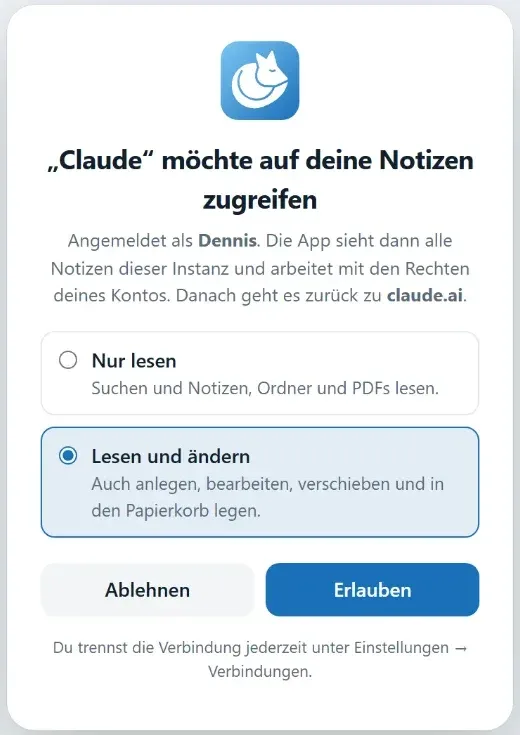
You decide when connecting. It can only change things if both account and key may write. What it changes shows under your name in the version history.
Disconnect – and that’s that
All connected apps are listed under Settings → Connections. “Disconnect” keeps an app out.
Approval
You decide what the AI may do.
With claude.ai and ChatGPT, the AI sends you to your instance. There you sign in, pick read only or read and change, and tap allow.
- The AI works with folders, labels, notes, PDFs, the calendar, templates and your inbox
- It can’t mention anyone – that would send a real person a notification
Connect
How to connect your AI
-
Switch on MCP
An admin switches on the MCP server under Settings → MCP server. After that, every account has the Settings → Connections area.
-
Connect claude.ai and ChatGPT
They sign in via OAuth: add
https://your-domain/mcpas a custom connector – in claude.ai under the connector settings, in ChatGPT under the settings for apps and connectors. The AI sends you to your instance for approval. -
Connect Claude Code, Claude Desktop and Cursor
They use an access key from Settings → Connections. Give it a name, decide whether it may change notes and copy the ready-made command or configuration. The key is shown exactly once.
MCP
What MCP is
MCP is an open standard that many AI apps understand. Through it, an AI can search and work with your notes – if you connect it.
Once connected, it can for example quiz you or make flashcards from a text.
Questions
Questions about AI
Is there AI?
Not built in. Connect Claude, ChatGPT or a similar client via MCP. MCP stays off until an admin switches it on. Without that connection, no AI sees your notes.
Which AIs can I connect?
Claude, ChatGPT and similar clients. claude.ai and ChatGPT sign in via OAuth; Claude Code, Claude Desktop and Cursor use an access key. What a connected AI reads goes to its provider – which is why it’s your decision, not the app’s.
May the AI change my notes?
Only if you allow it. When connecting, you pick read only or read and change, and it can only change things if both account and key may write. It only sees what your account sees, and what it changes shows under your name in the version history.
Where is my data stored?
On the server your instance runs on: notes in a database, with images, attachments and PDFs as files next to it. With hosting by us, that’s our server.

Curious? Give it a try.
Snowfox Notes is free and open source. Download it and put it on your own web space – or let us host it for you.
Runs on any web space with PHP 8.4. No SSH needed.