

On the go & offline
Just as easy on your phone. Even offline.
On a smartphone the three columns become layers you switch with a swipe. Whatever you need on the road, you keep ready offline – for trains, planes and dead zones.

On your phone
Three columns become three layers.
On a smartphone you swipe between folders, list and note. Tablets in portrait work the same way.
-
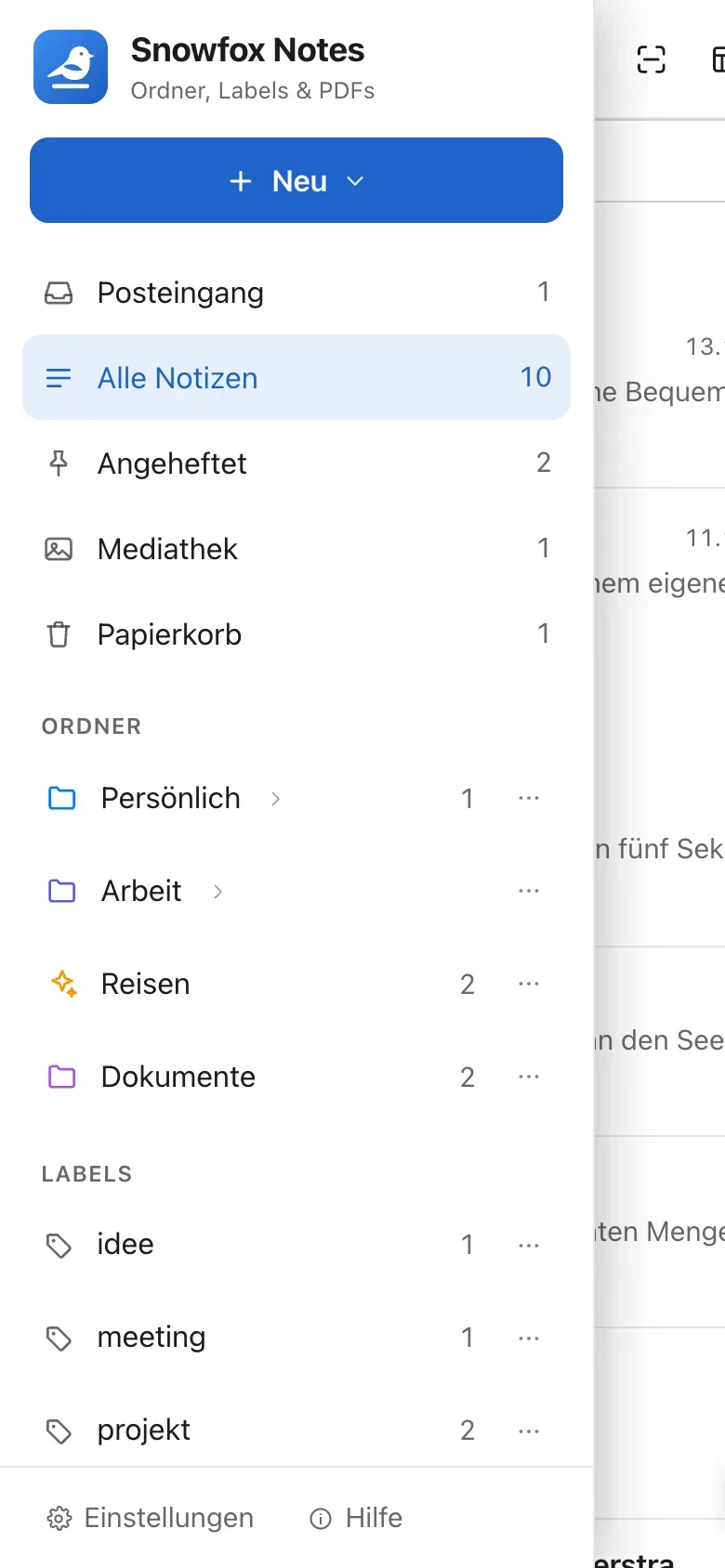
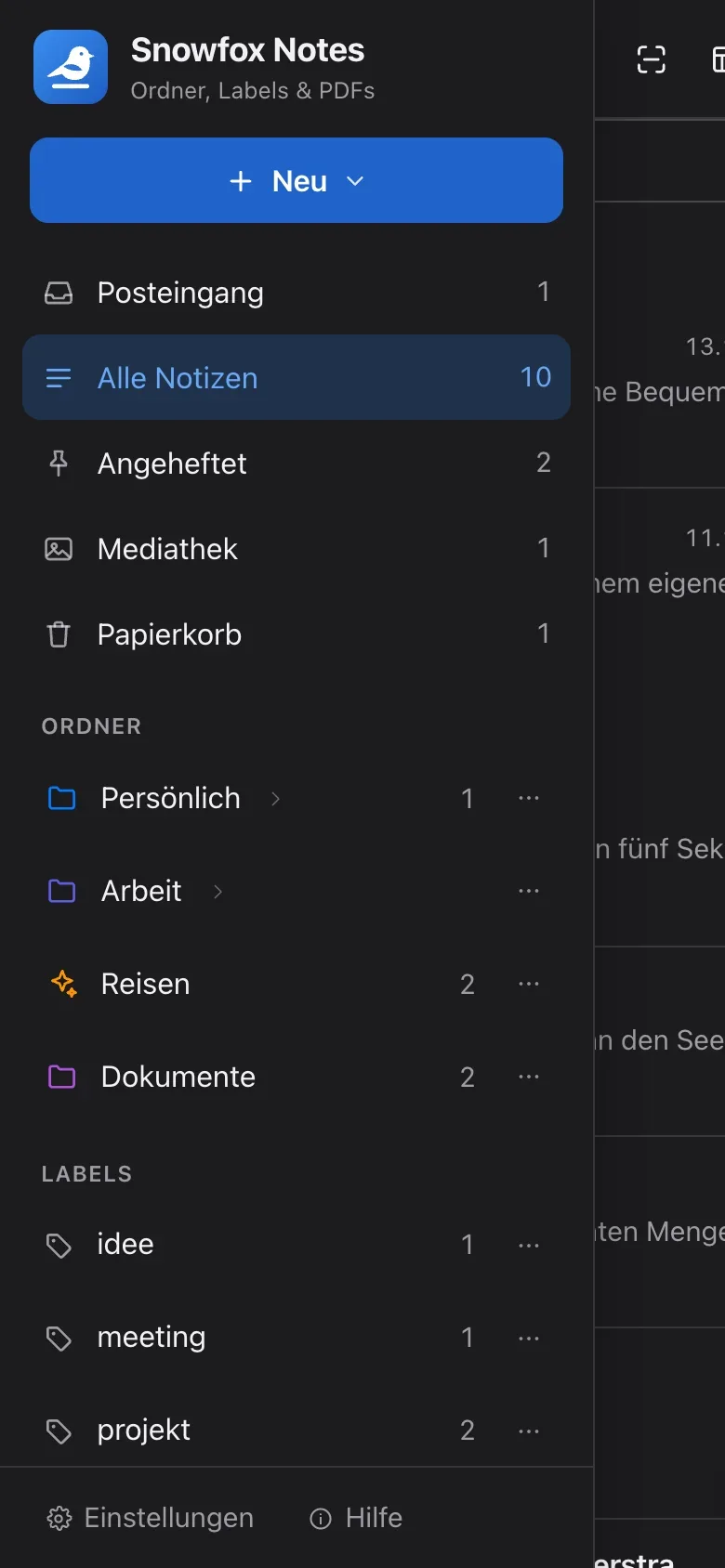
Folders
Swipe in from the left edge to bring in the folders.
-
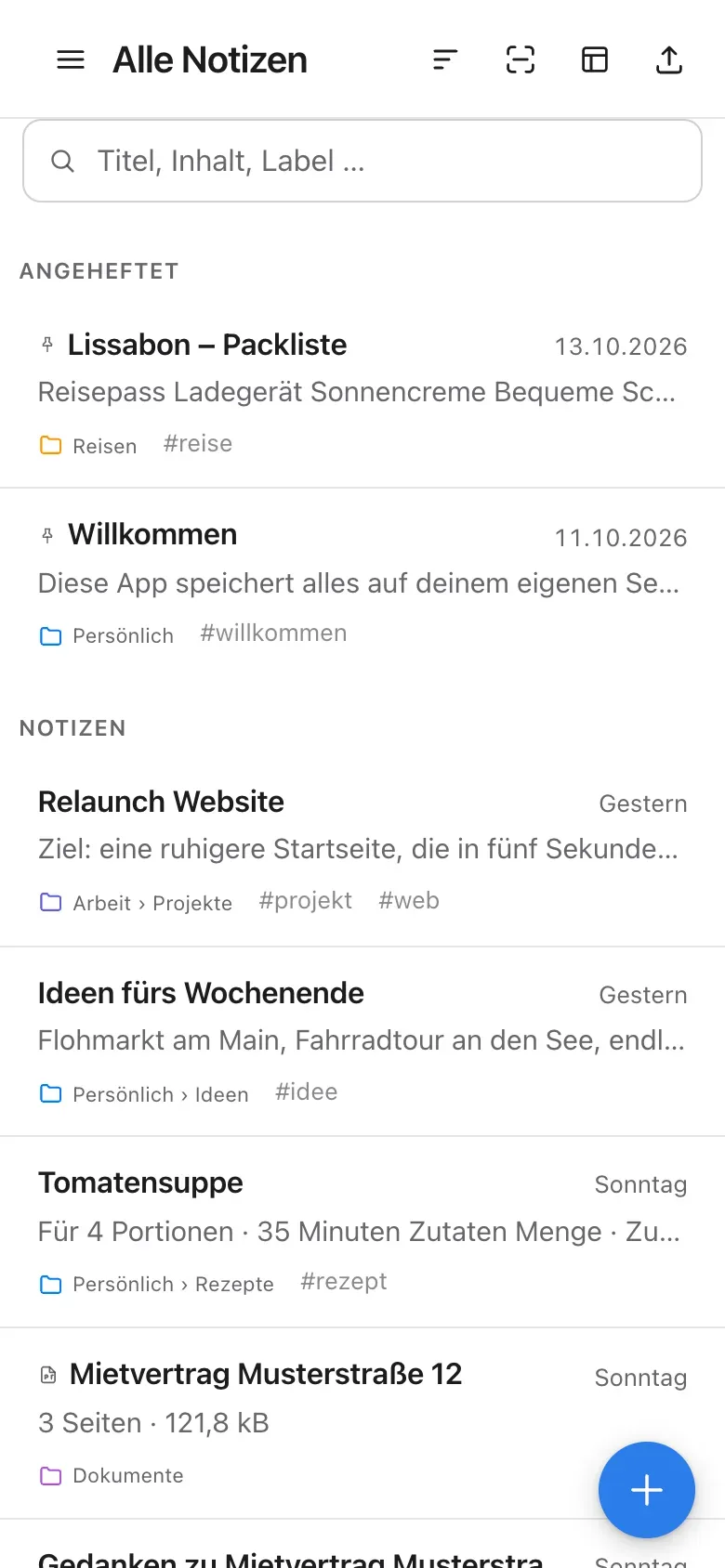
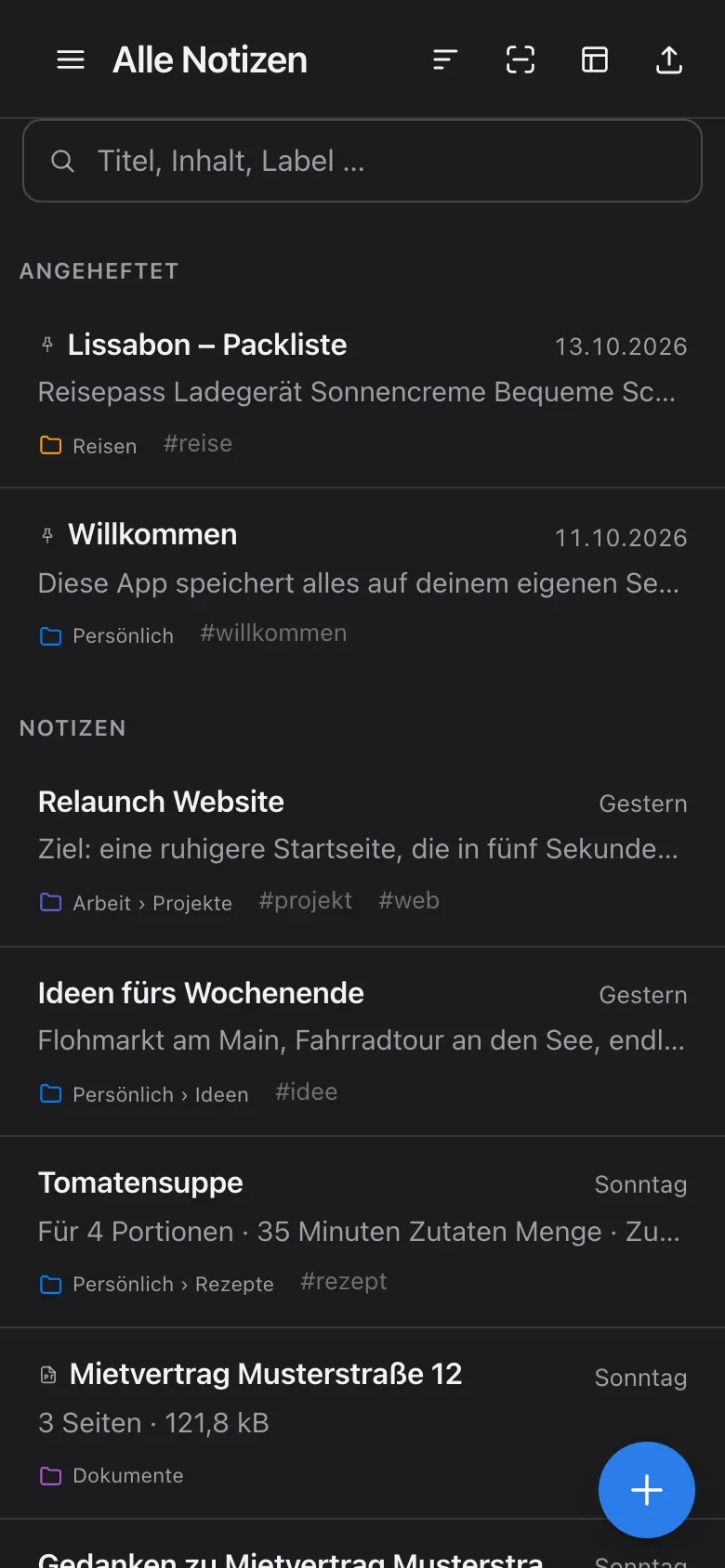
List
Press and hold a note, folder or label to open its menu.
-
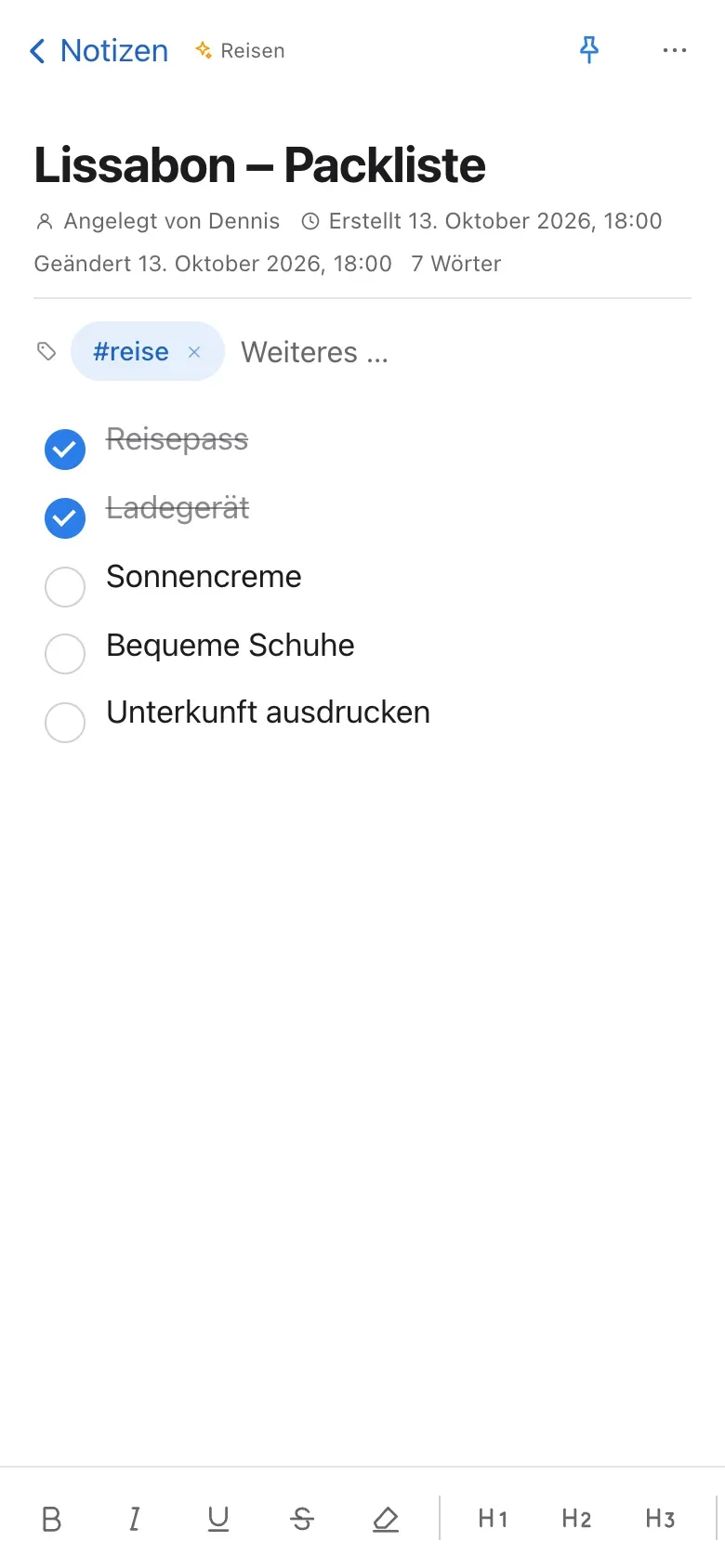
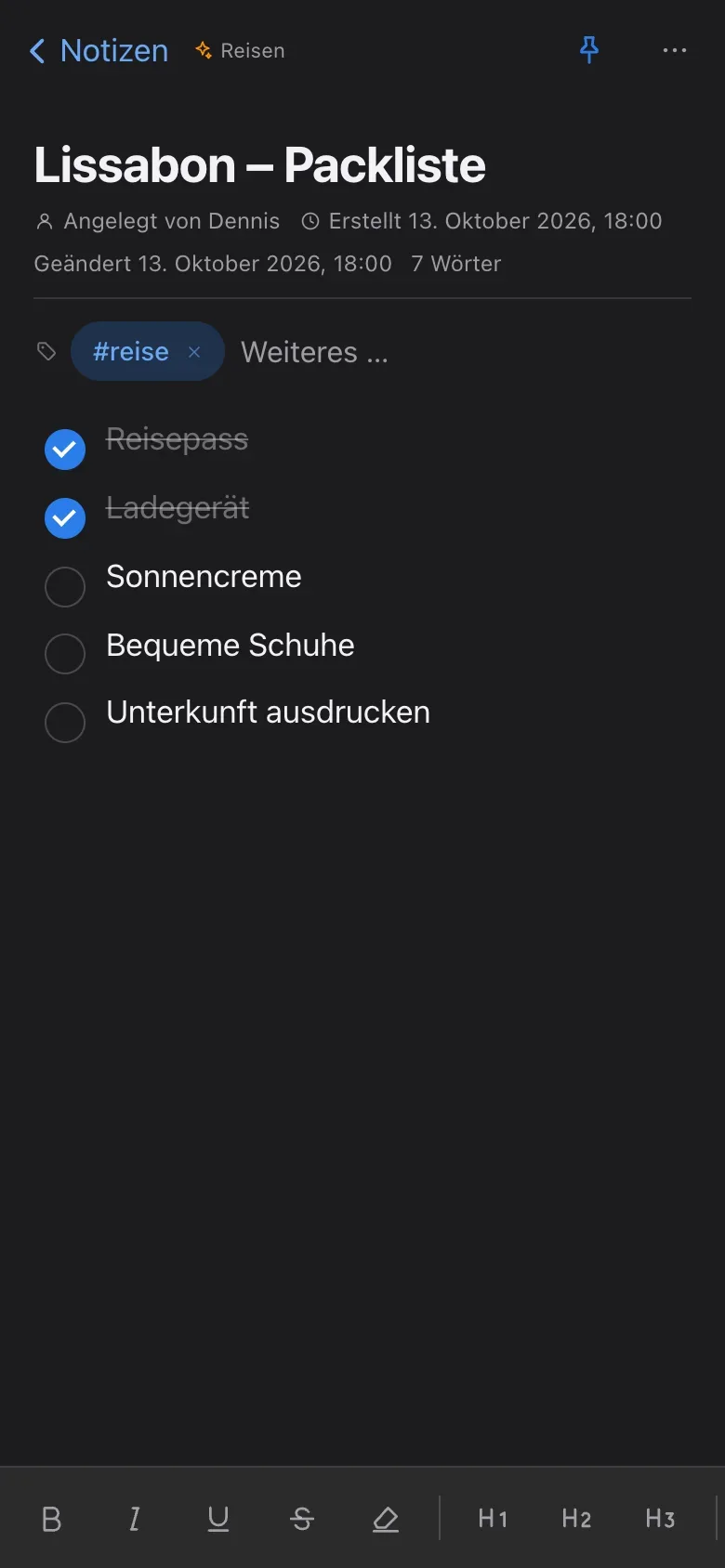
Note
Inside a note, the same gesture takes you back to the list.
-
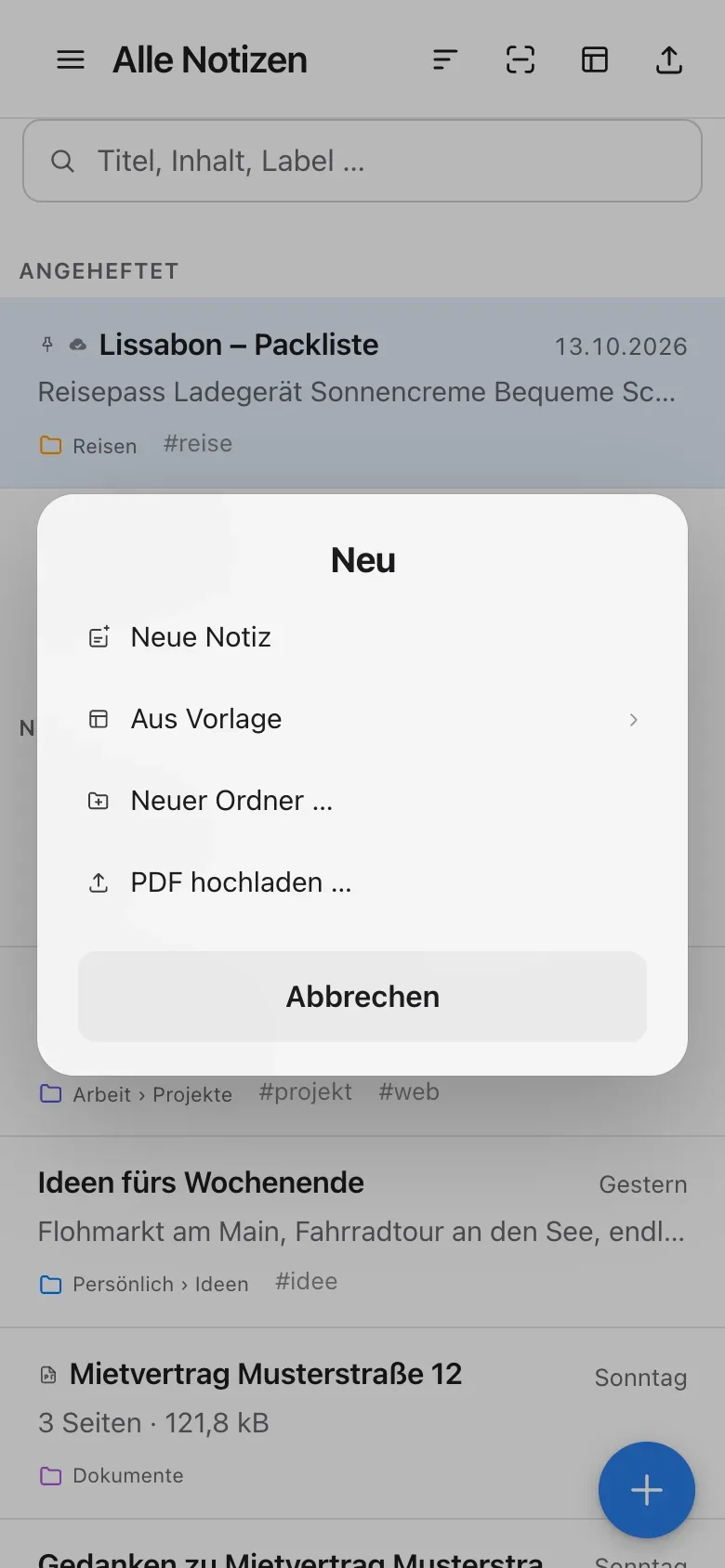
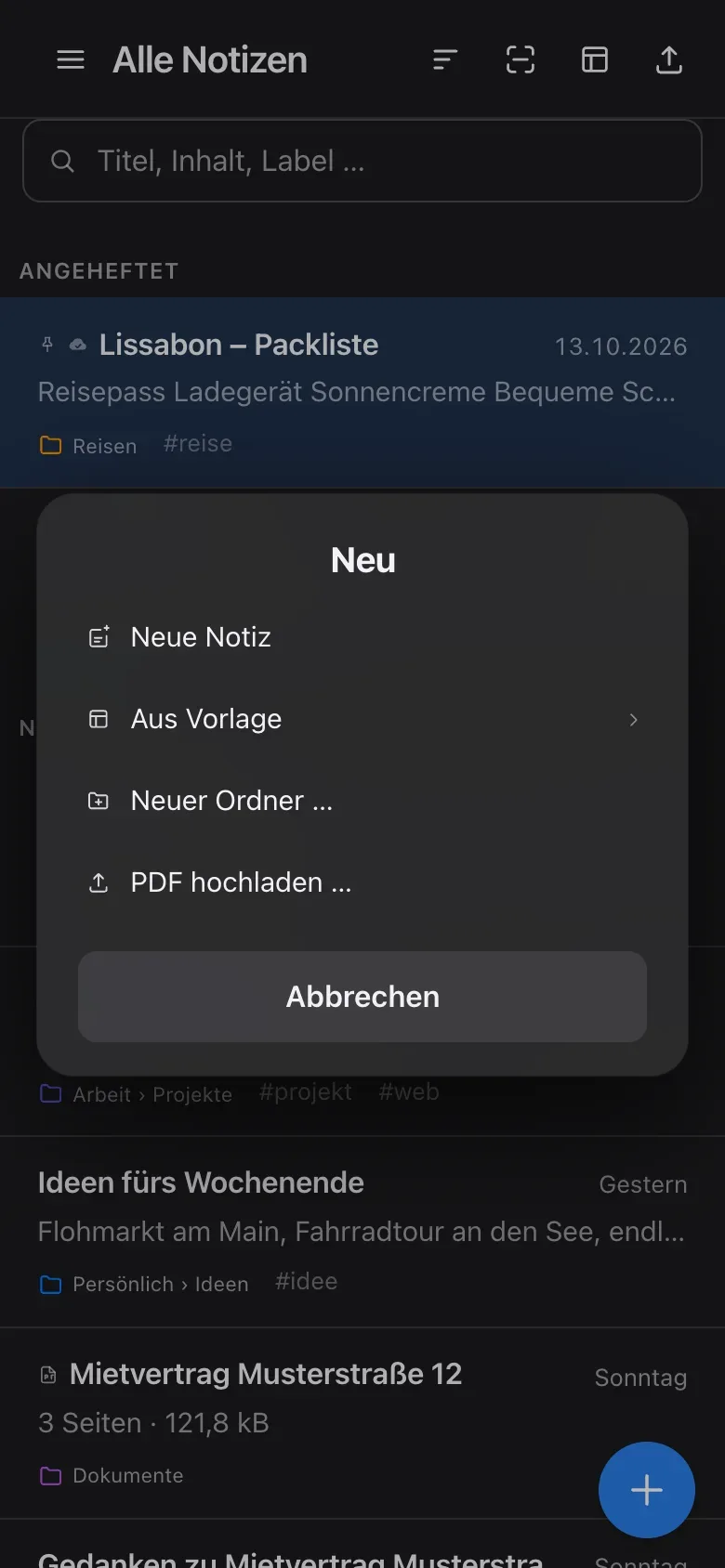
New
The round + button creates a note or folder, or uploads a PDF.
Offline
Ready for trains, planes and dead zones.
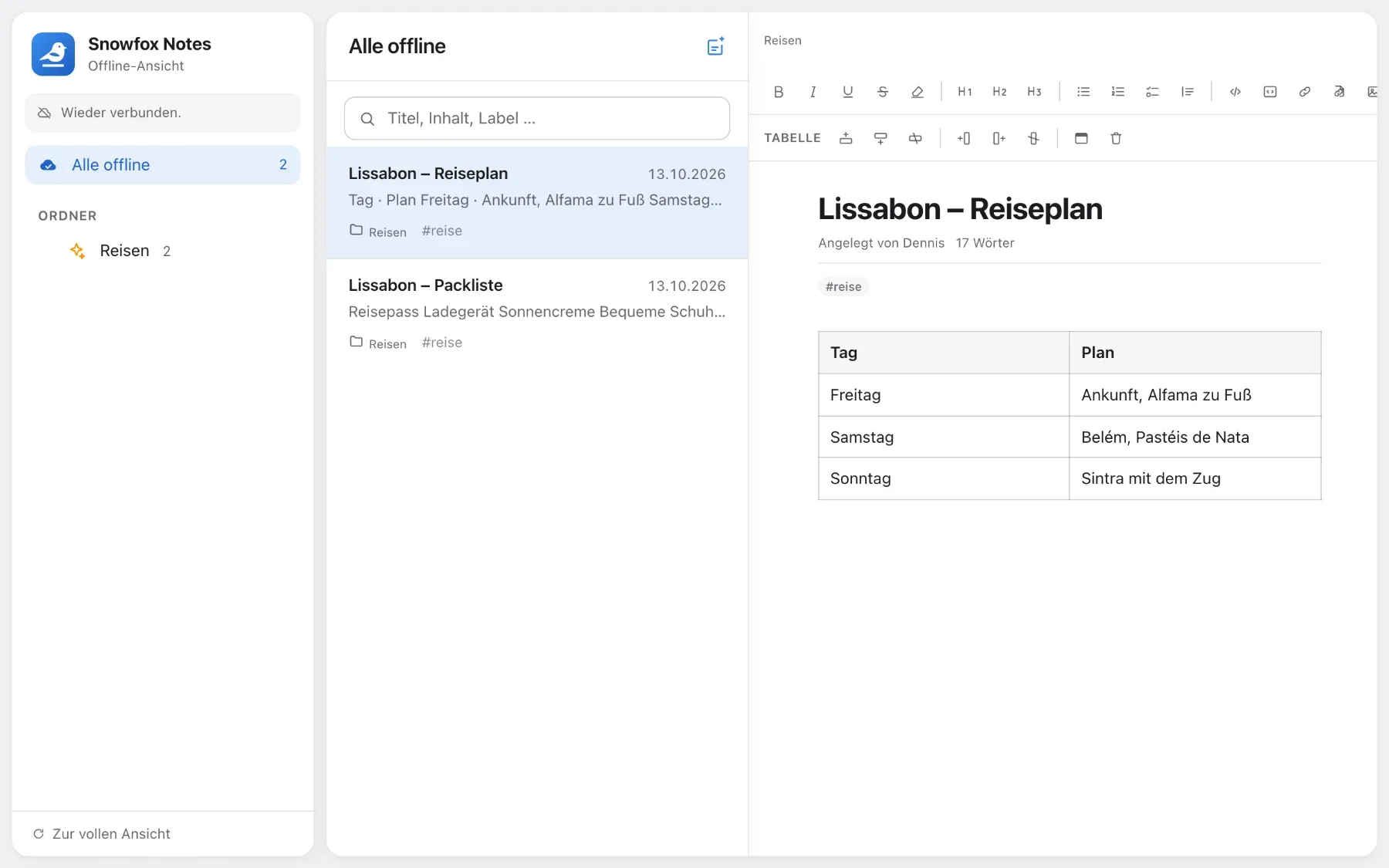
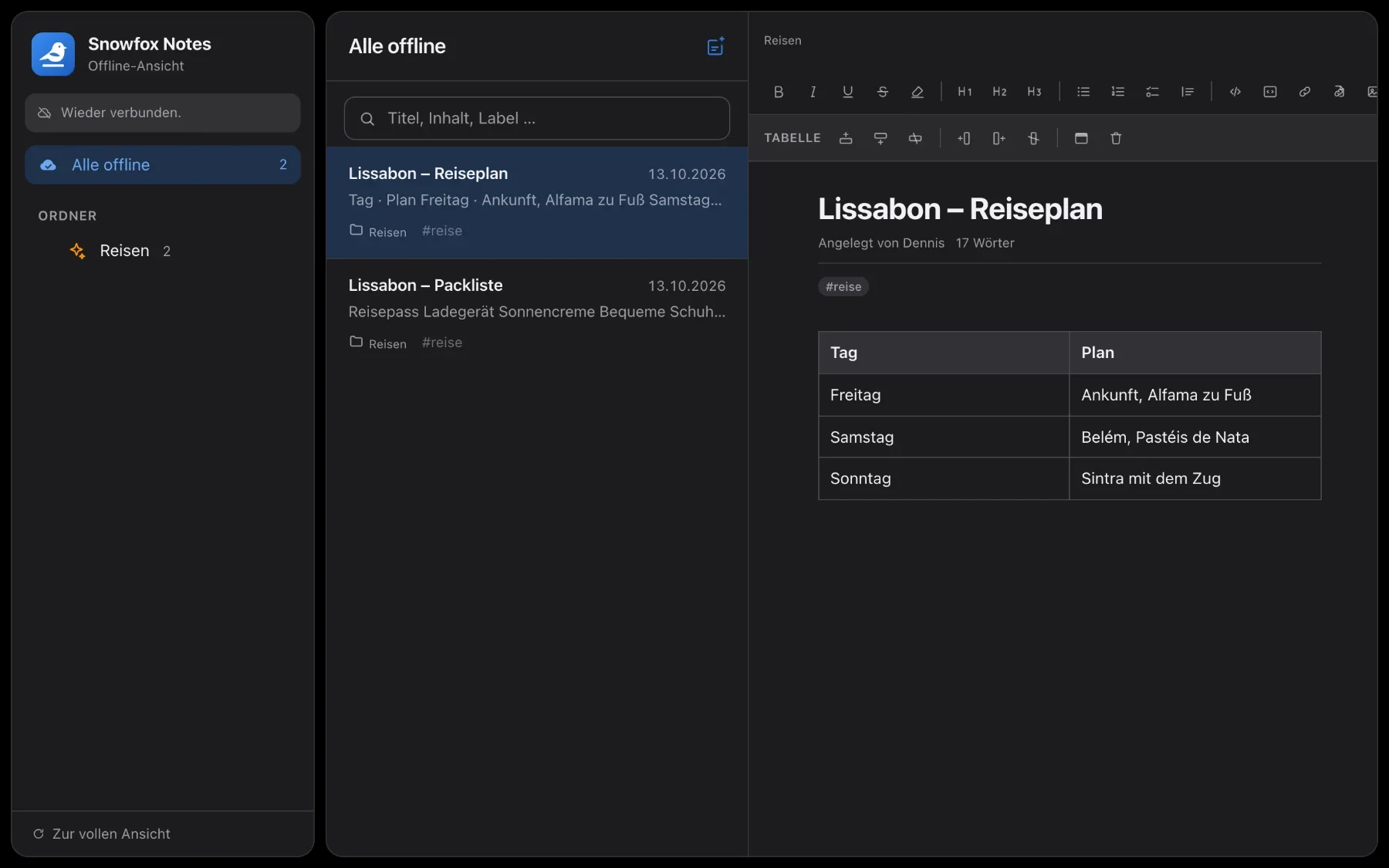
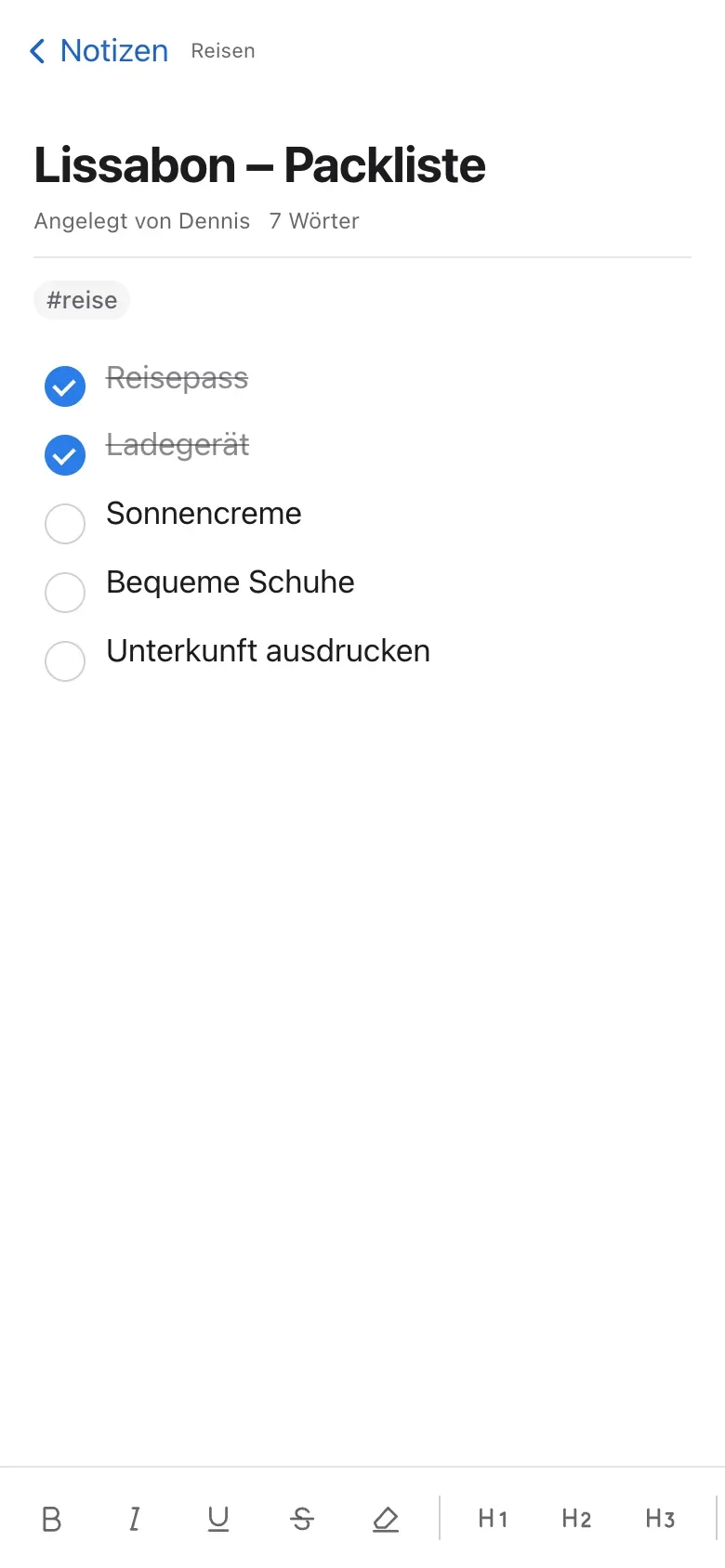
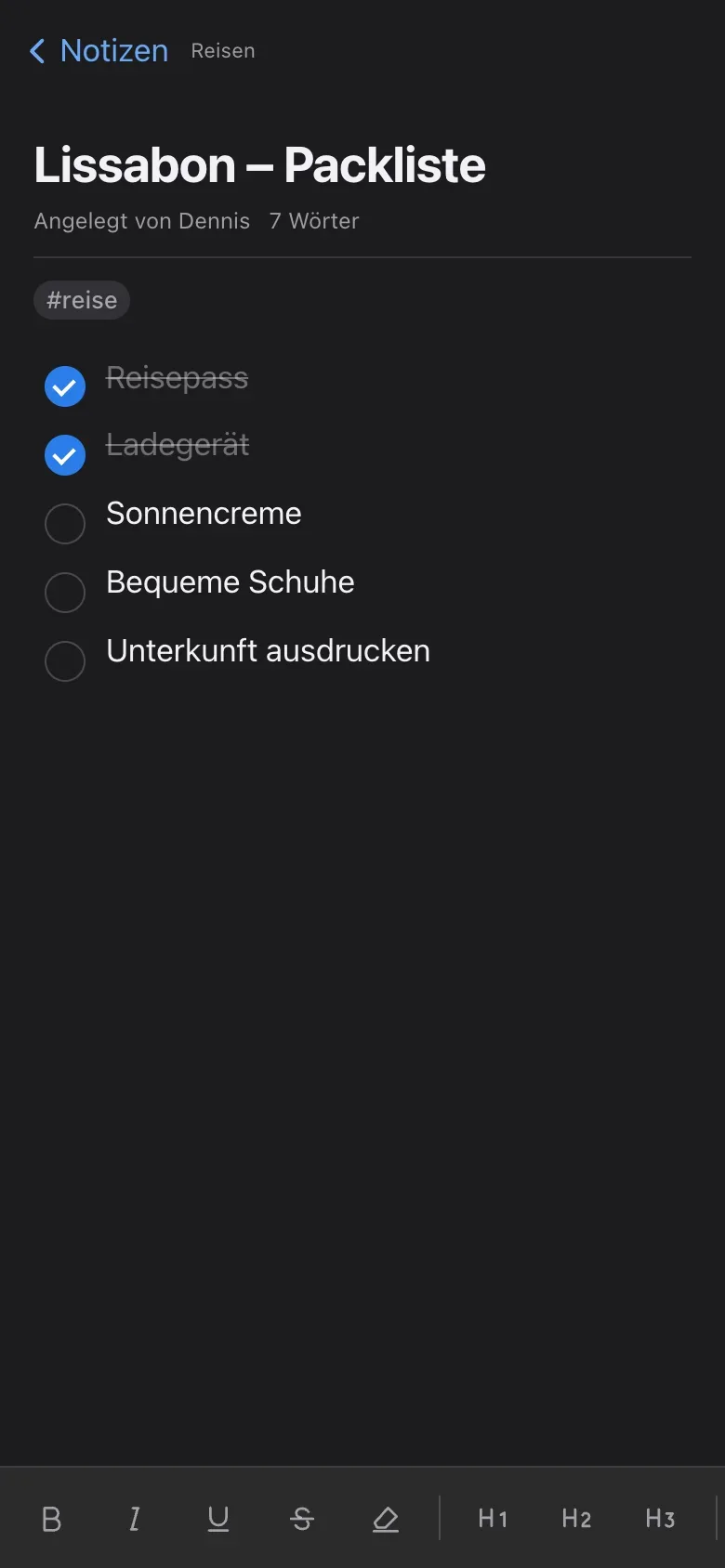
When there’s no connection, the offline view opens. There you read, search and edit the notes you kept ready – and create new ones.
- Single notes, whole folders with their subfolders, or everything – you decide for each device
- PDFs can be read offline
- Marked notes show a small cloud icon in the list
- As soon as your server answers again, “Back to the full view” takes you back


At a glance
Offline is a per-device choice.
Your server is always the reference. For the road, you decide what this device keeps ready as well – on your laptop you need different things than on your phone.
- Per deviceyou decide what’s kept ready offline
- 5 minutesHow often the copy on your device refreshes – plus at start-up and after saving
- 5,000notes fit into one “Everything” package – if you have more, the app tells you
- HTTPSis what your instance needs for the offline view and installing it as an app
Sync
What you write offline gets through.
Keep things offline
Single notes, whole folders or everything. “Everything” keeps your whole library ready, future notes included, with images, attachments and PDFs.
- The app tells you upfront how much space that takes
- An overview shows what’s ready and how much space it takes
Sync and conflicts
What you write offline waits in a queue. As soon as your server answers again, it syncs.
- If a note changed on the server in the meantime, the server’s version wins
- Your offline version isn’t lost: it’s in the version history
On your home screen
Snowfox Notes installs like an app – with its own icon and no browser bar.
- On iPhone, iPad and Android
- Choose the icon’s colour and name in the settings – handy with several instances
Sharing into the app
Once the app is installed on an Android device, it shows up in other apps’ share menu. Links, text, photos and files become a draft you save as a note.
- Android only: Apple doesn’t let web apps into the share menu
- Up to 10 files of 20 MB each at once
How to
How to get going
-
Add it to your home screen
- iPhone and iPad: in Safari, tap Share and choose Add to Home Screen.
- Android: in Chrome, open the ⋮ menu and choose Install app or Add to Home screen.
Pick the icon’s colour and name first under Settings → Appearance.
-
Make something available offline
- In a note’s or folder’s menu: Available offline. A folder takes its subfolders along.
- Several notes at once in selection mode.
- Or everything: Settings → This device → Available offline → Everything.
-
Work without a connection
When the connection drops, the offline view opens on its own. Read, search, write and create notes as usual.
-
Back online
As soon as your server answers again, Back to the full view takes you back and your changes are synced.
Questions
Questions about phones and offline
Can I work without internet?
Yes. Make single notes, folders or everything available offline. Changes sync once you’re back online – and aren’t lost even when there’s a conflict.
What if a note changed both offline and on the server?
Then the server’s version wins. Your offline version isn’t lost, though: it’s in the note’s version history (“written offline”) and can be restored from there.
Why is a note missing from the offline view?
Only what you’ve marked as “Available offline” on this device is kept ready – or everything, if you chose “Everything” under Settings → This device.
Can I share straight into the app?
On Android, yes: once the app is installed, it shows up in other apps’ share menu. iPhone and iPad don’t offer that, because Apple doesn’t let web apps into the share menu.
Which browsers are supported?
All current browsers – Safari, Chrome, Edge and Firefox, on computers and phones alike. For the offline view and installing it as an app, your instance should be reachable via HTTPS.

Curious? Give it a try.
Snowfox Notes is free and open source. Download it and put it on your own web space – or let us host it for you.
Runs on any web space with PHP 8.4. No SSH needed.