

Organise & find
Everything in its place. And quickly found.
Folders give your notes a fixed place, labels connect them across. Links lead from note to note – and search finds things as you type.

Folders & labels
Organised the way you think.
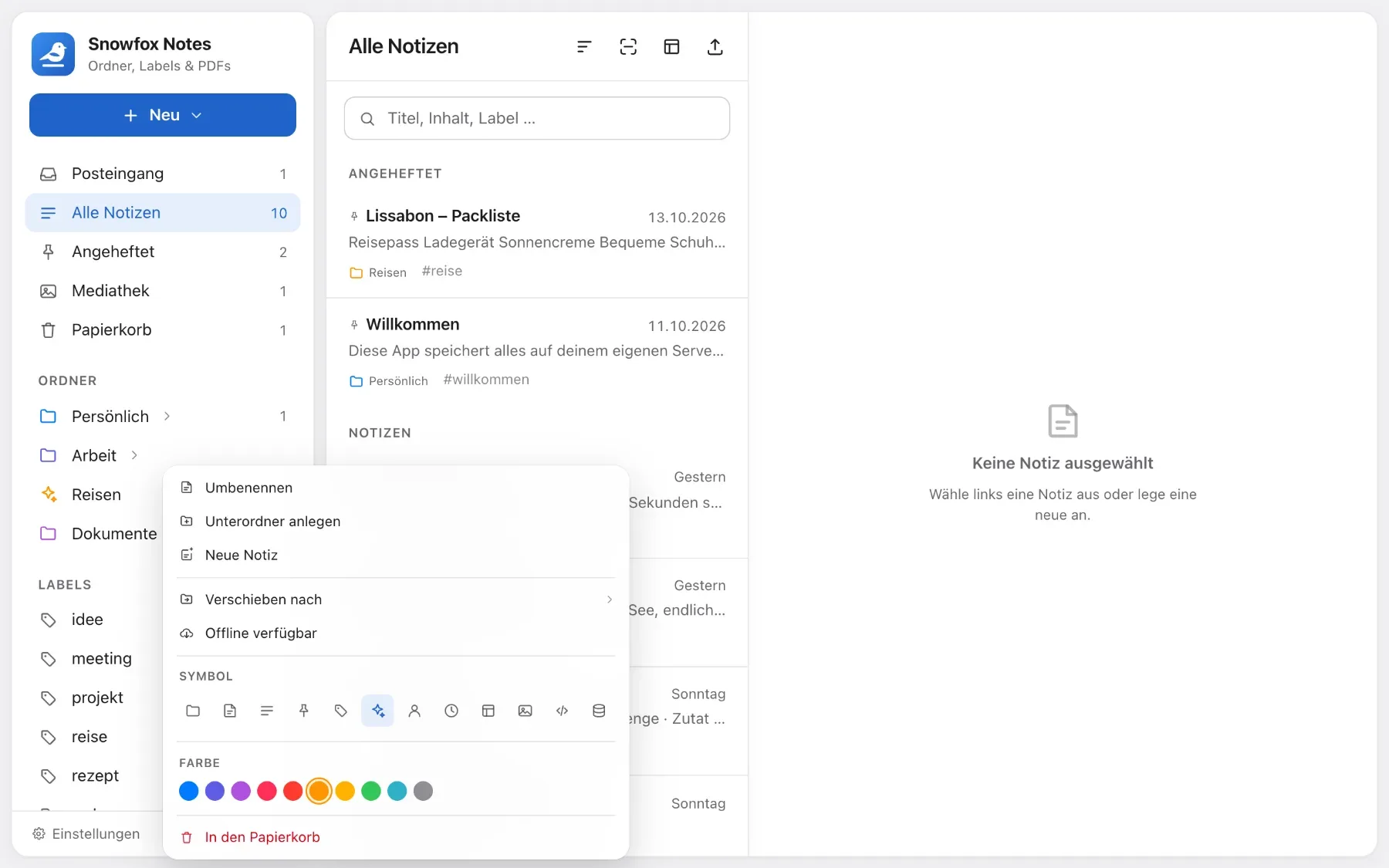
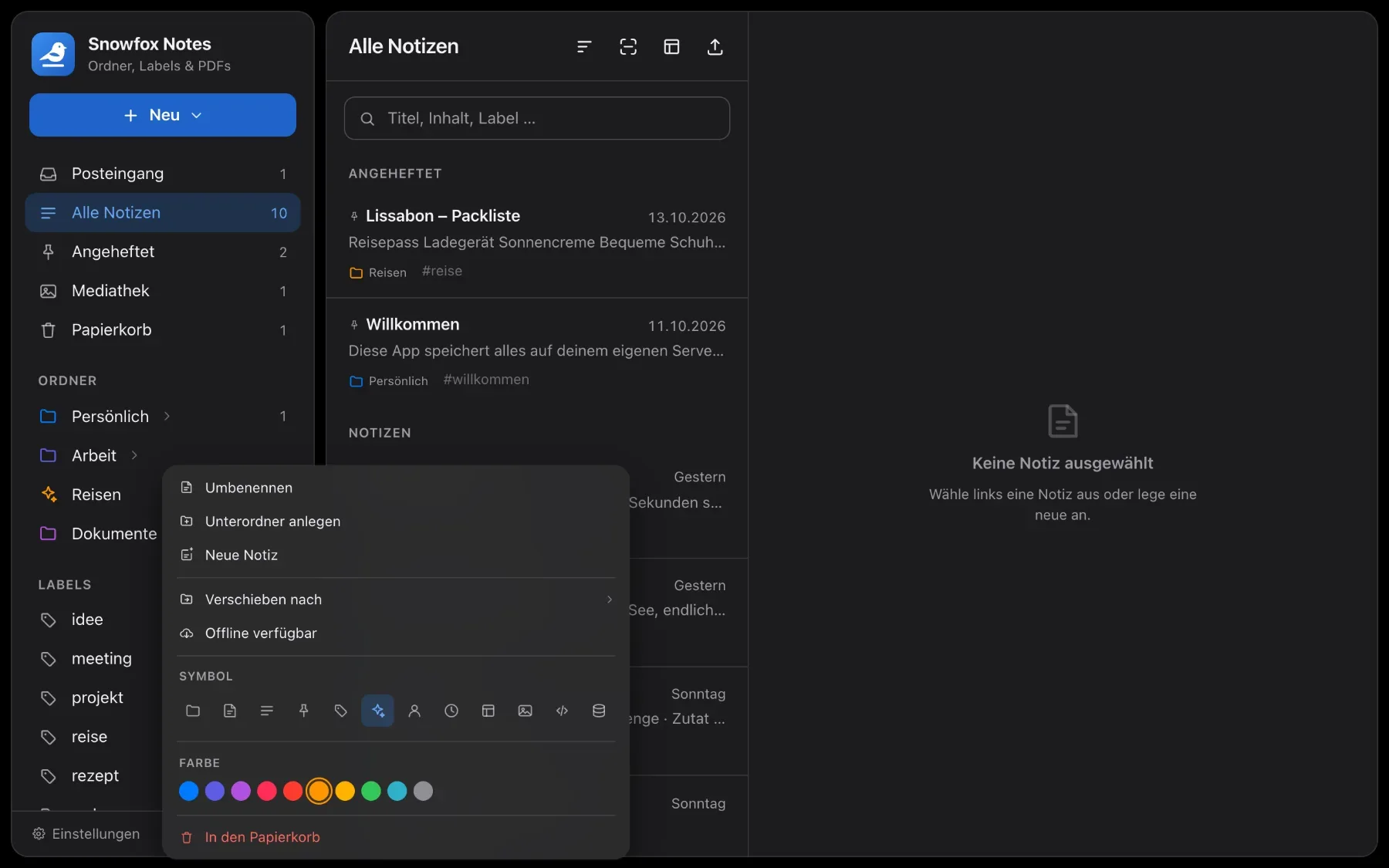
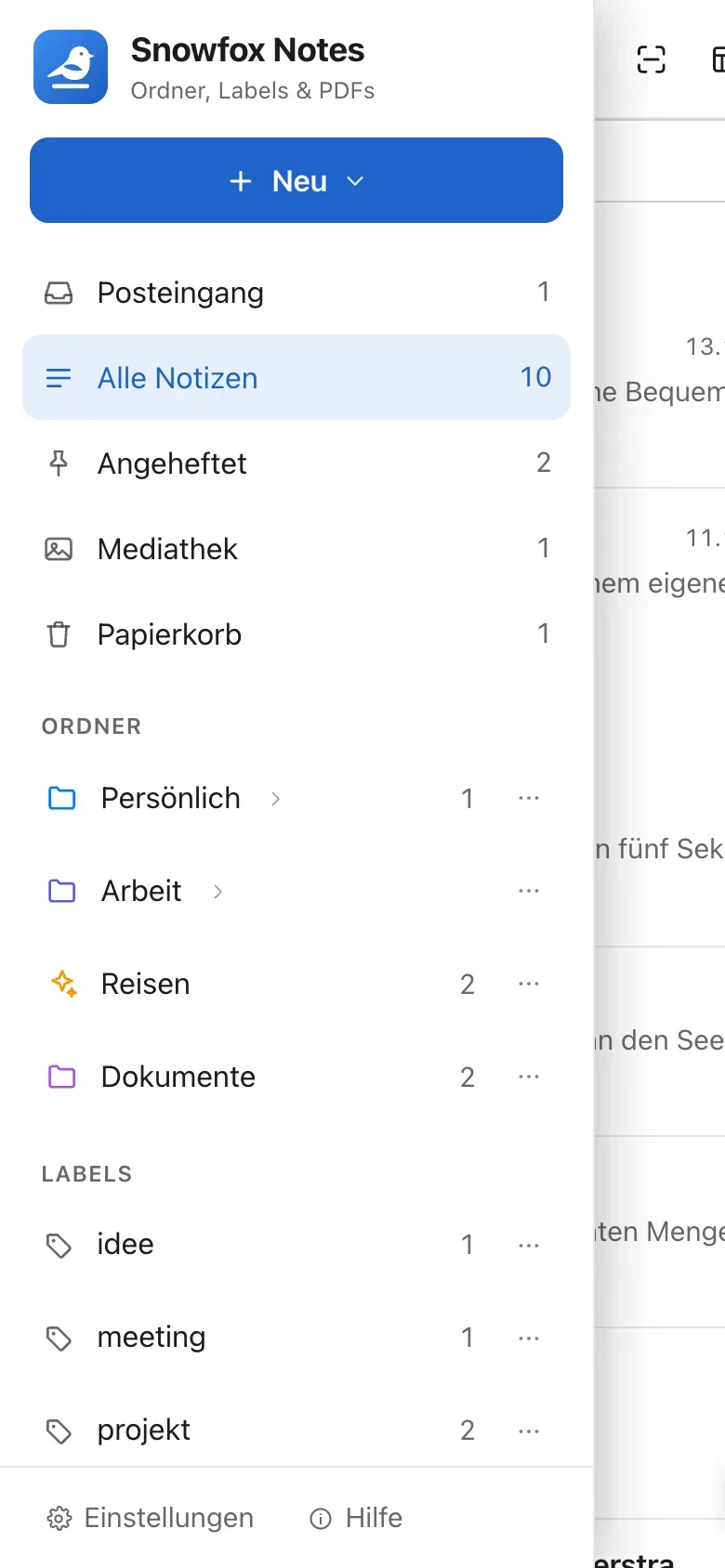
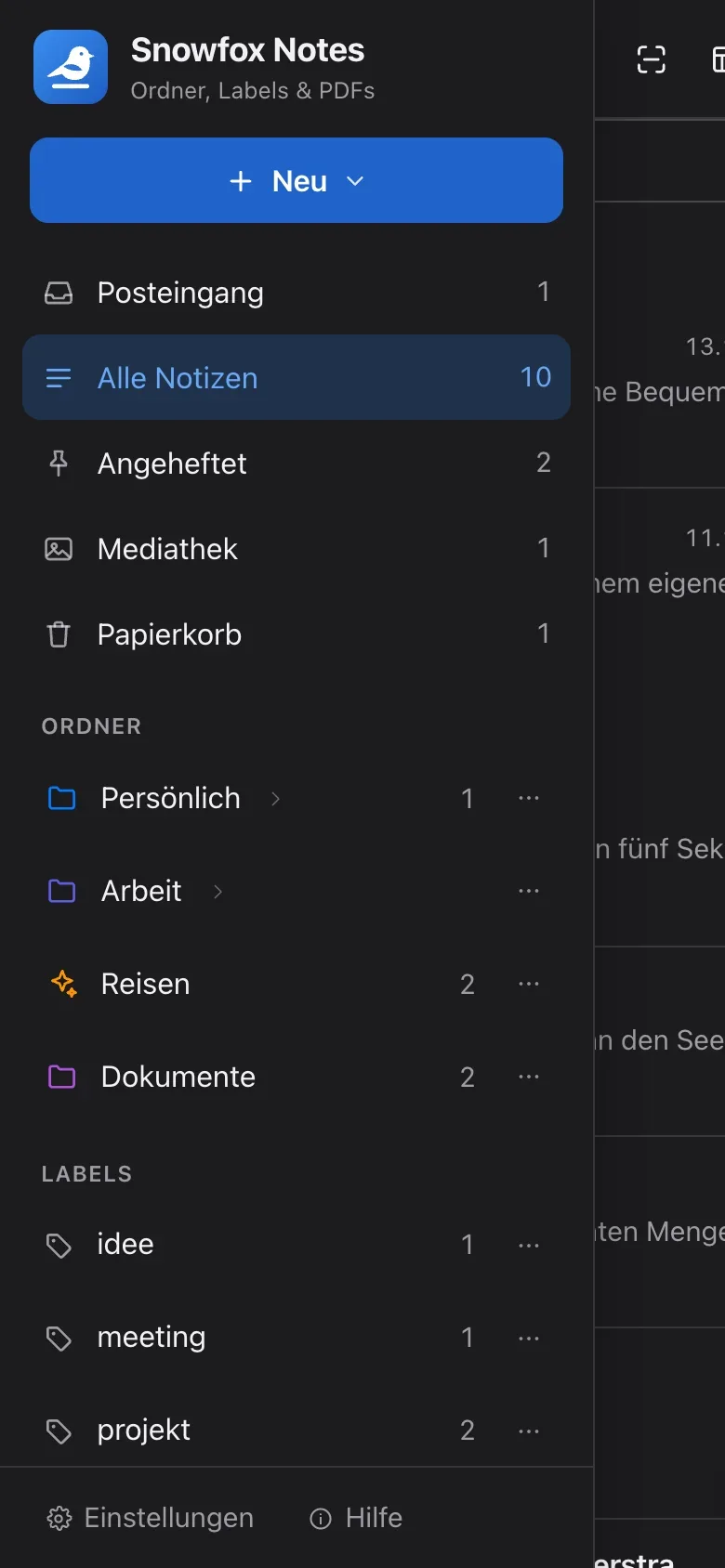
Folders nested as deep as you like, with colours and icons. Labels sit across them – a note can have many. Moving and reordering is all drag and drop.
- Top-level folders have their own colour; subfolders take it on
- Drag notes onto a folder – pause over a collapsed folder and it opens by itself
- While you type a label, the app suggests existing ones
- Pin what matters: it stays at the top of every list
Search that finds
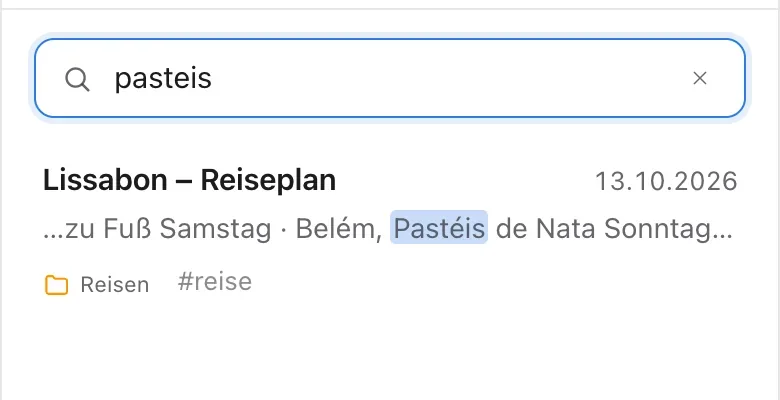
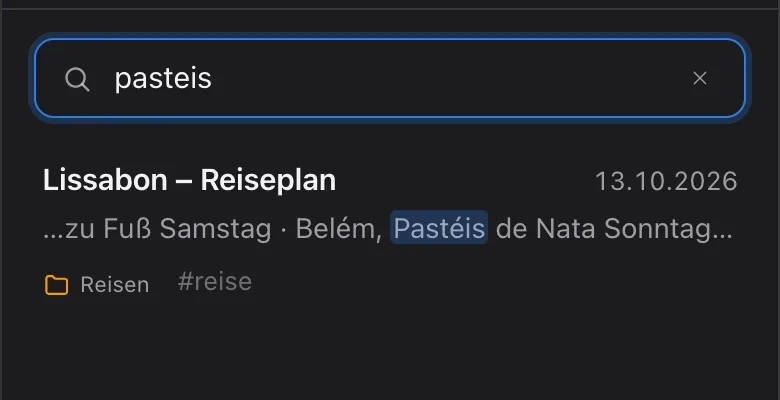
“pasteis” finds “Pastéis”.
Search looks through titles, text, labels and PDFs as you type. Accents and case don’t matter – just as “mohre” finds “Möhre”. Matches are highlighted, and for PDFs you see which page the term is on.
Linking
Quickly found – and well connected.
Links from note to note, a list you sort the way you think – and a lot done in one go.
Linked notes
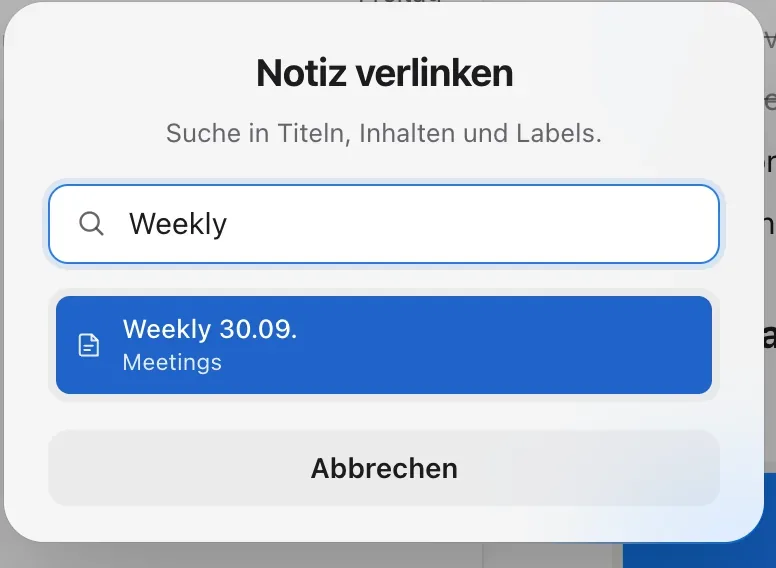
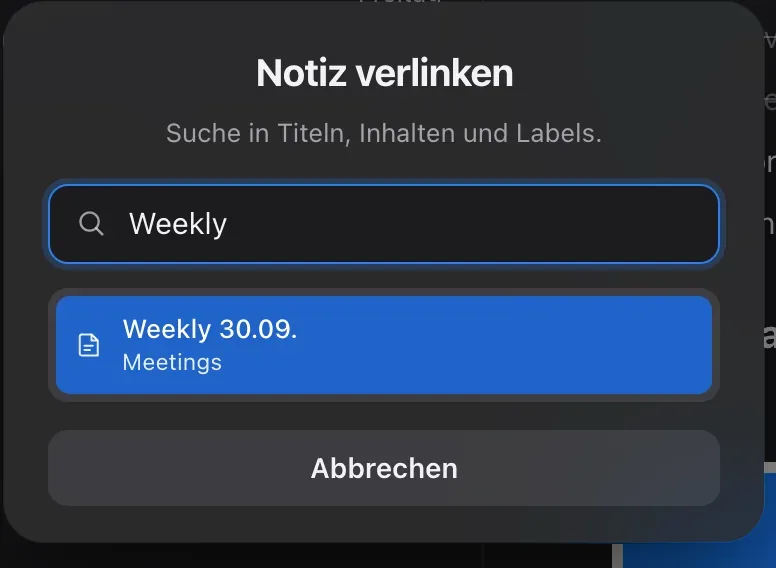
Link to other notes with a shortcut. Rename a note and the links follow.
- Add a link with ⌘⇧K or via “/” → Link note
- Click a link to open the note

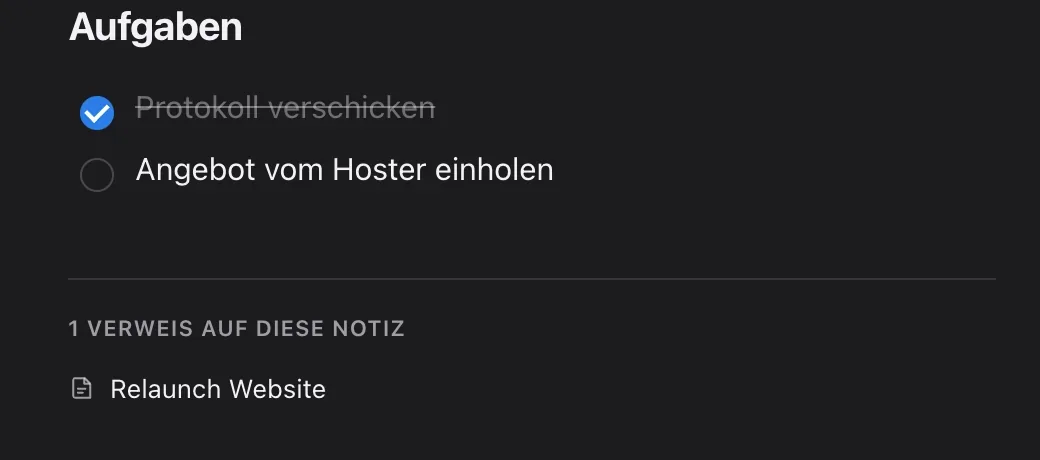
What links here?
Below every note you see which other notes link to it – one click and you’re there.
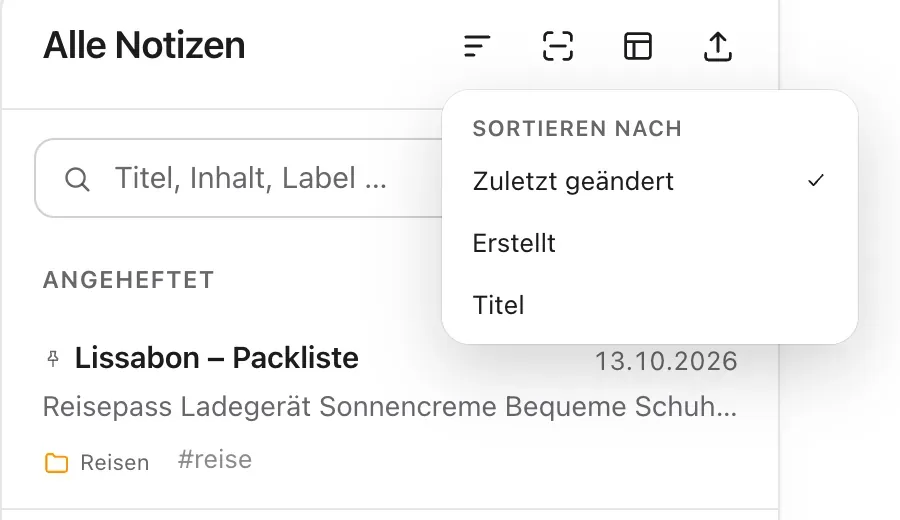
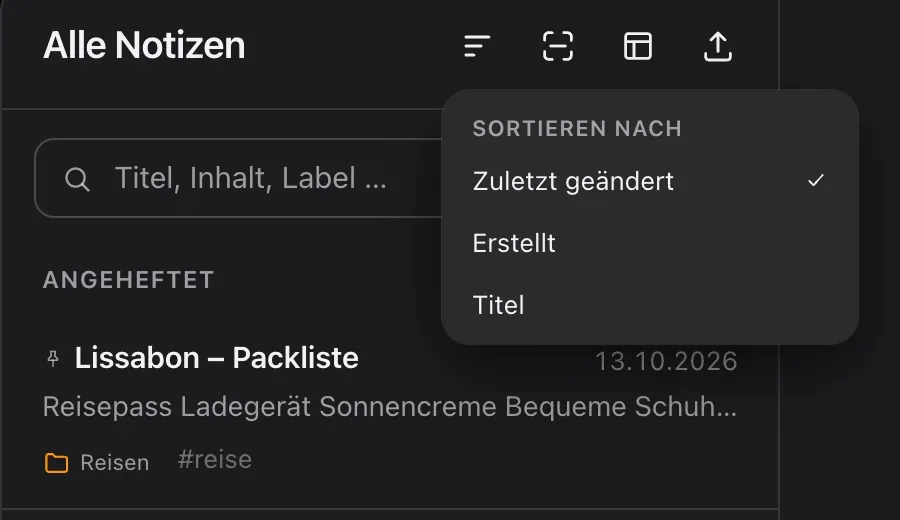
Sort and pin
Sort the list by “Last modified”, “Created” or “Title” – the app remembers your choice on each device. Pinned notes always stay at the top.
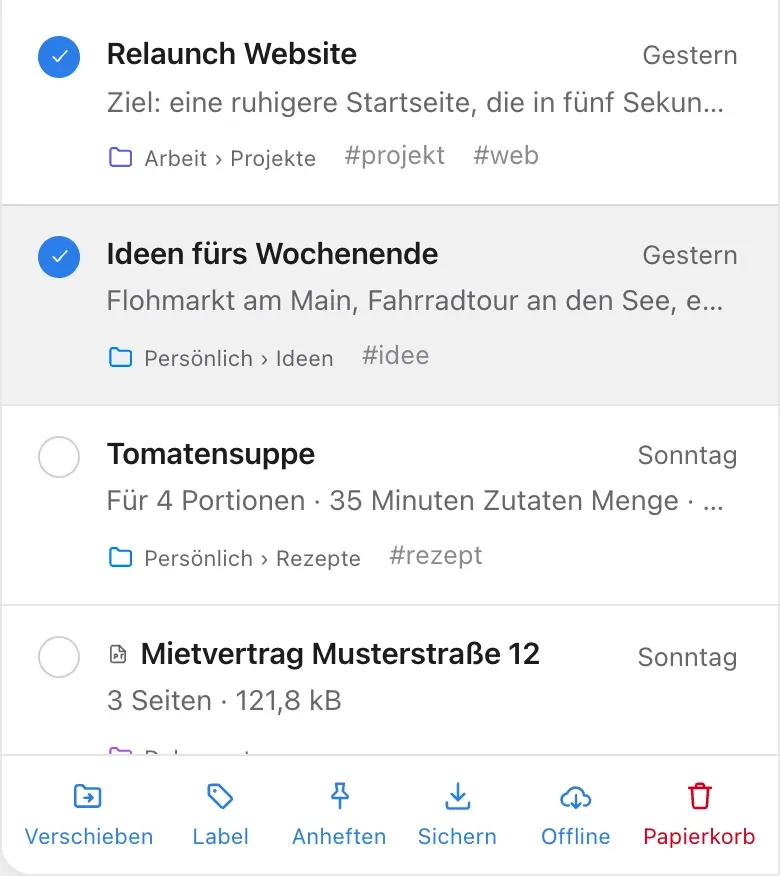
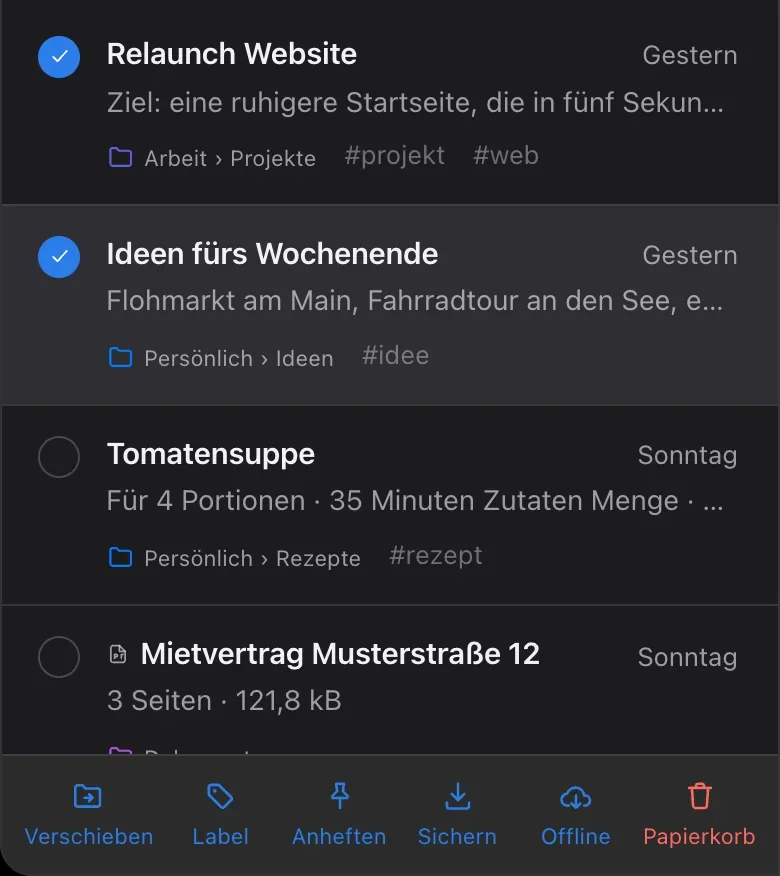
Several at once
In selection mode you mark several notes and deal with them in one go: move, label, pin, save, make available offline or move to the trash.
How to
Four things to know
-
1. Create and colour a folder
Choose New → Folder and give it a name right away. Right-click the folder – on a phone, press and hold – to open its menu. Choose Icon and colour there.
-
2. Add labels
Click into the line below a note’s title, type the label and confirm with Enter, a comma or a space. The app suggests existing labels as you type.
-
3. Link another note
Press ⌘⇧K – or type “/” and choose Link note. Type the start of the title and pick the match.
-
4. Search everywhere
Type into the search field at the top of the list. Inside a folder or label, the app searches there first – click Everywhere to widen it. Esc clears it again.
Questions
Questions about organising and finding
Folders or labels – which should I use?
Both, however suits you. A folder gives a note its fixed place. Labels sit across folders, and a note can have many – so you can find, say, every note on a topic, whichever folder it lives in.
What happens to links when I rename a note?
Nothing breaks: rename the target note and every link to it updates on its own.
Do accents and capitals matter when searching?
No. Search ignores accents and case: “mohre” also finds “Möhre”.

Curious? Give it a try.
Snowfox Notes is free and open source. Download it and put it on your own web space – or let us host it for you.
Runs on any web space with PHP 8.4. No SSH needed.