

Editor
An editor that stays out of the way.
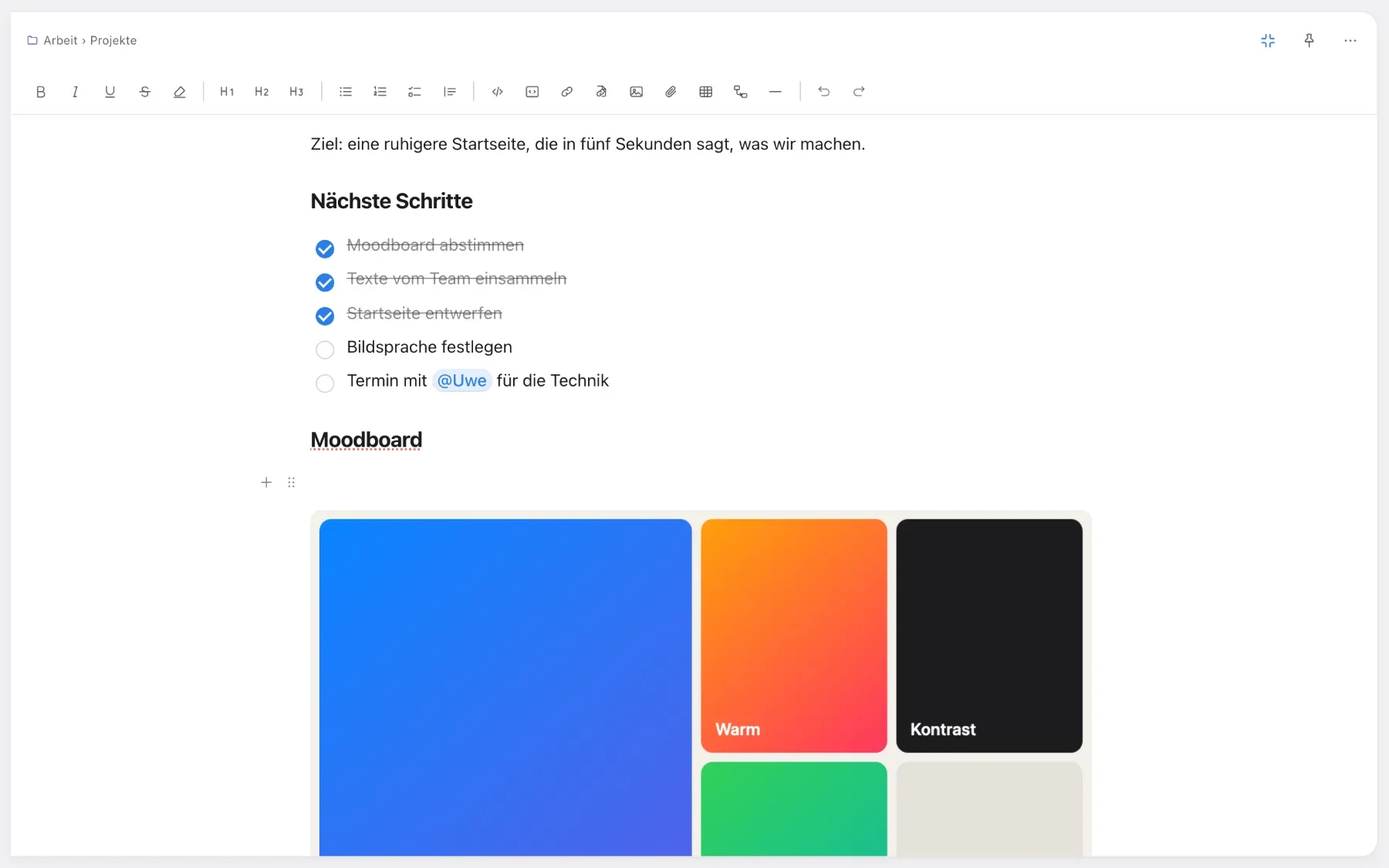
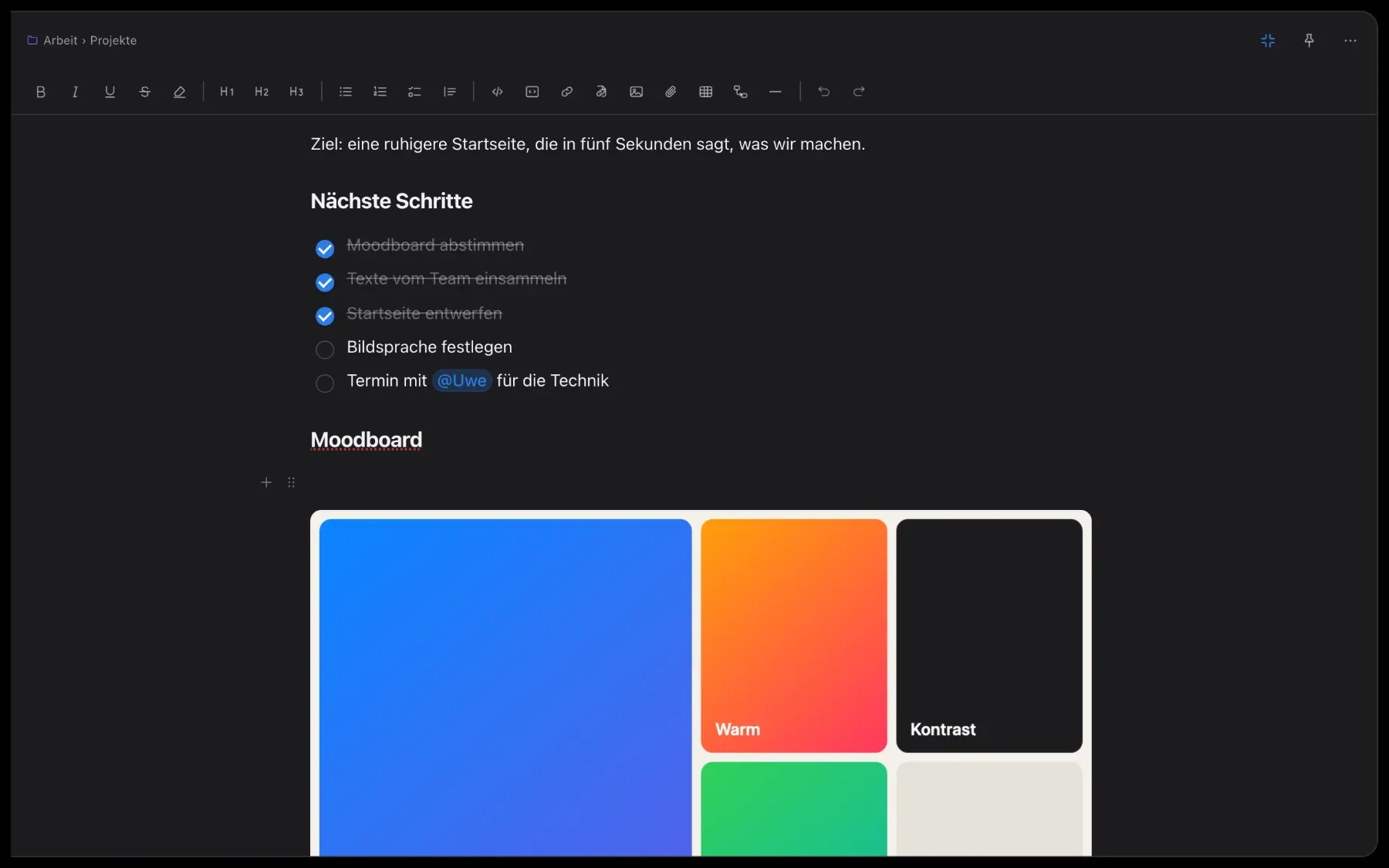
You write like in a word processor: what you format is what you see. No save button, no syntax to learn – and plain Markdown under the hood.

The editor
Write like in a word processor.
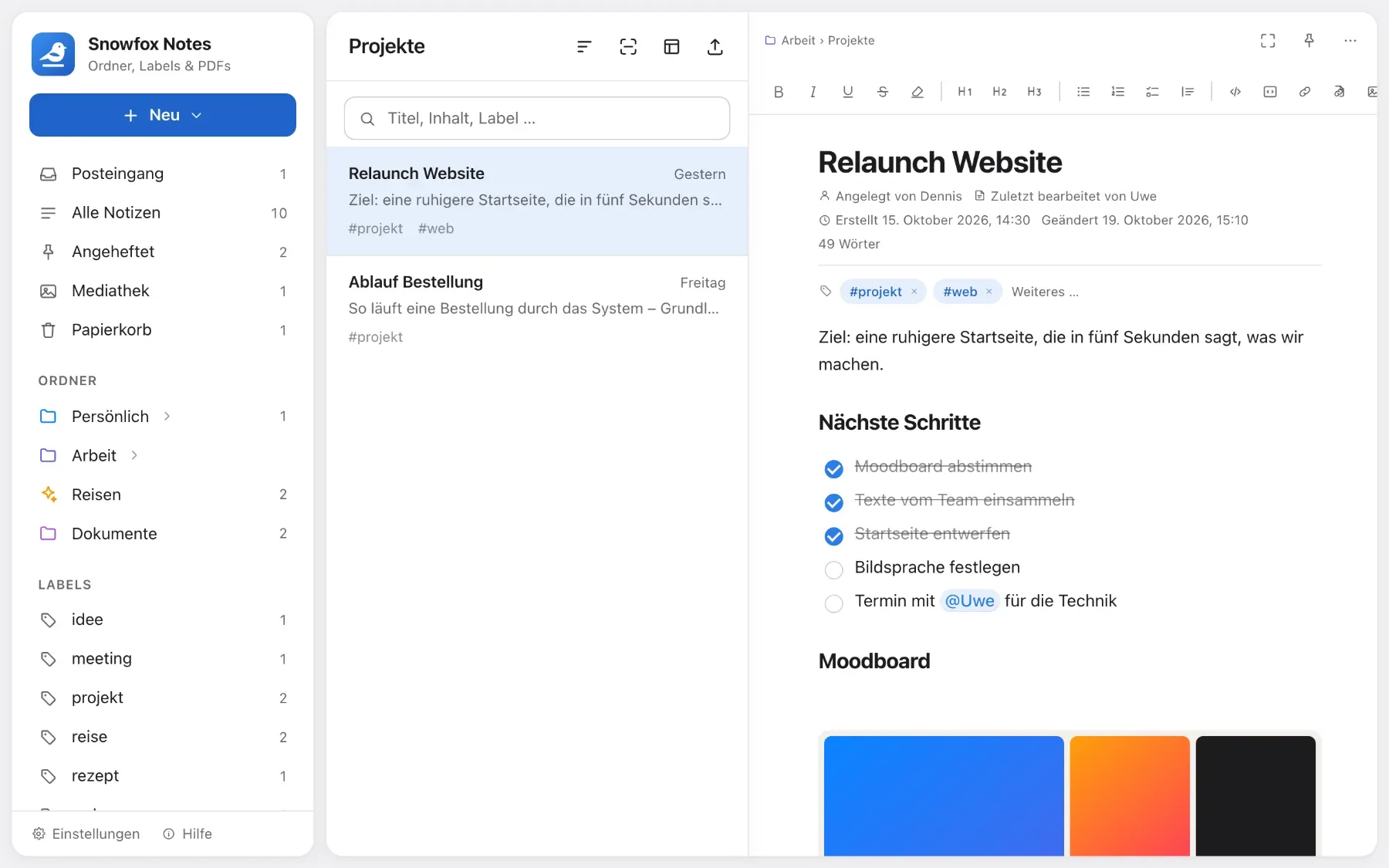
Bold, lists, tables, images pasted from the clipboard – everything looks the way you meant it, instantly. Saving happens in the background, no button required.
- /Block types: table, checklist, diagram …
- ⌘BBold – ⌘I italic, ⌘U underline
- ⌘⇧KLink another note
- ⌘/Every shortcut at a glance
Formatting
Toolbar or “/” – whichever you prefer.
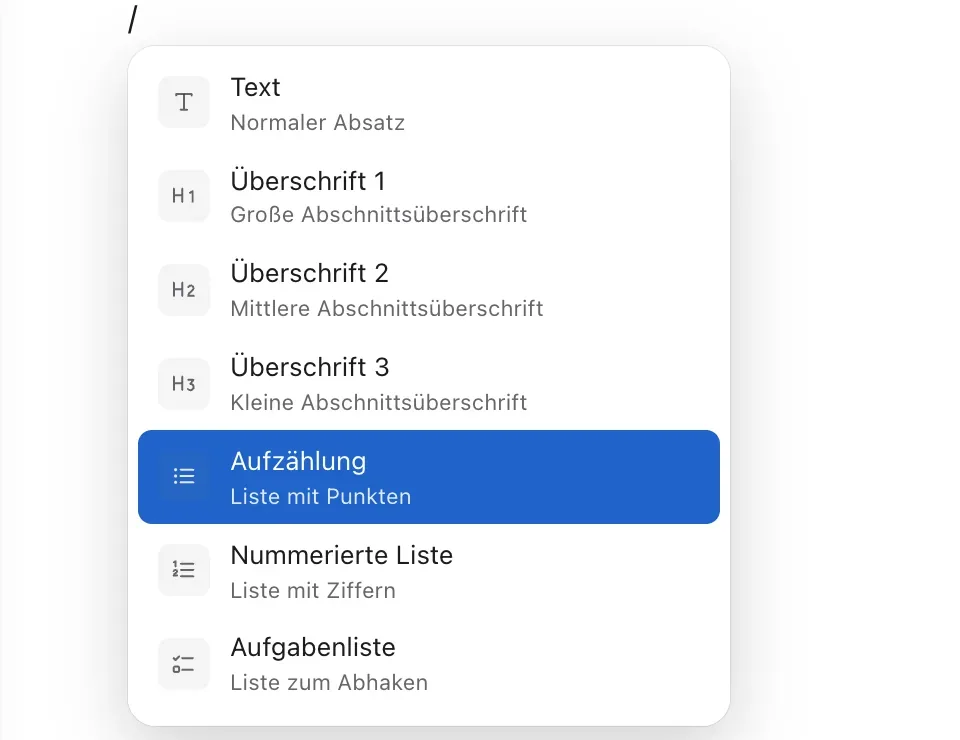
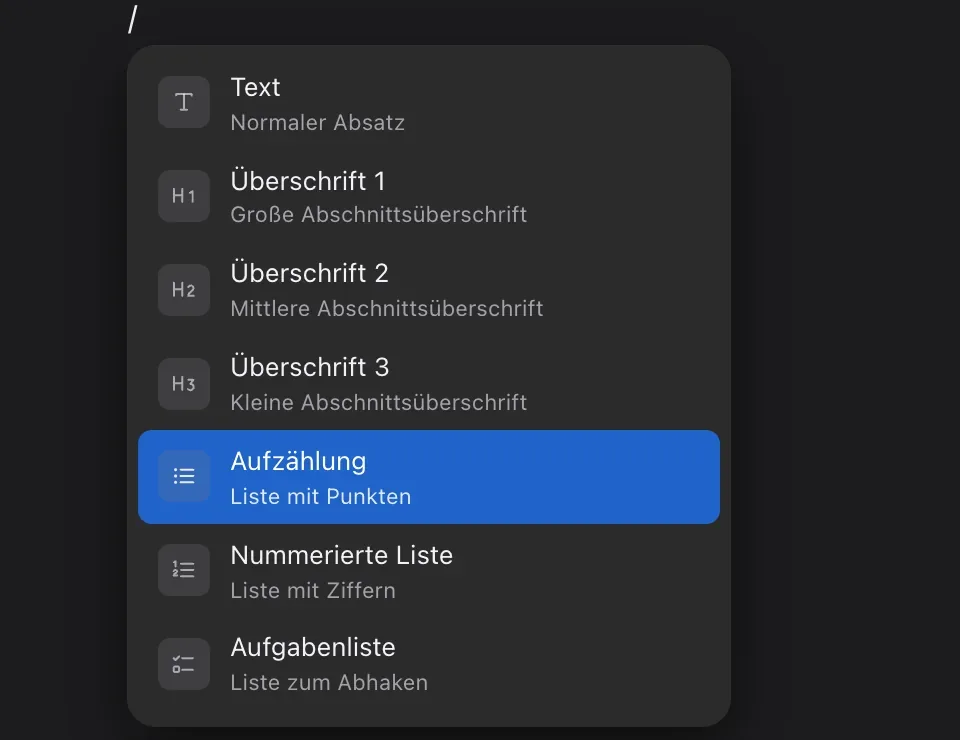
Type “/” at the start of a line and pick what you need – or use the toolbar. What you format is what you see.
- A toolbar with everything you need: bold, italic, underline, strikethrough, highlighter and headings in three sizes
- Select some text and a small bar with the most common formats appears right next to it
- Keep typing after the “/” to filter: “/tab” finds the table straight away
- It saves shortly after your last keystroke; if the server is briefly unreachable, your text is kept
Building blocks
Everything a note can hold.
Checklists, tables, images, files and diagrams – plus templates for everything you create again and again.
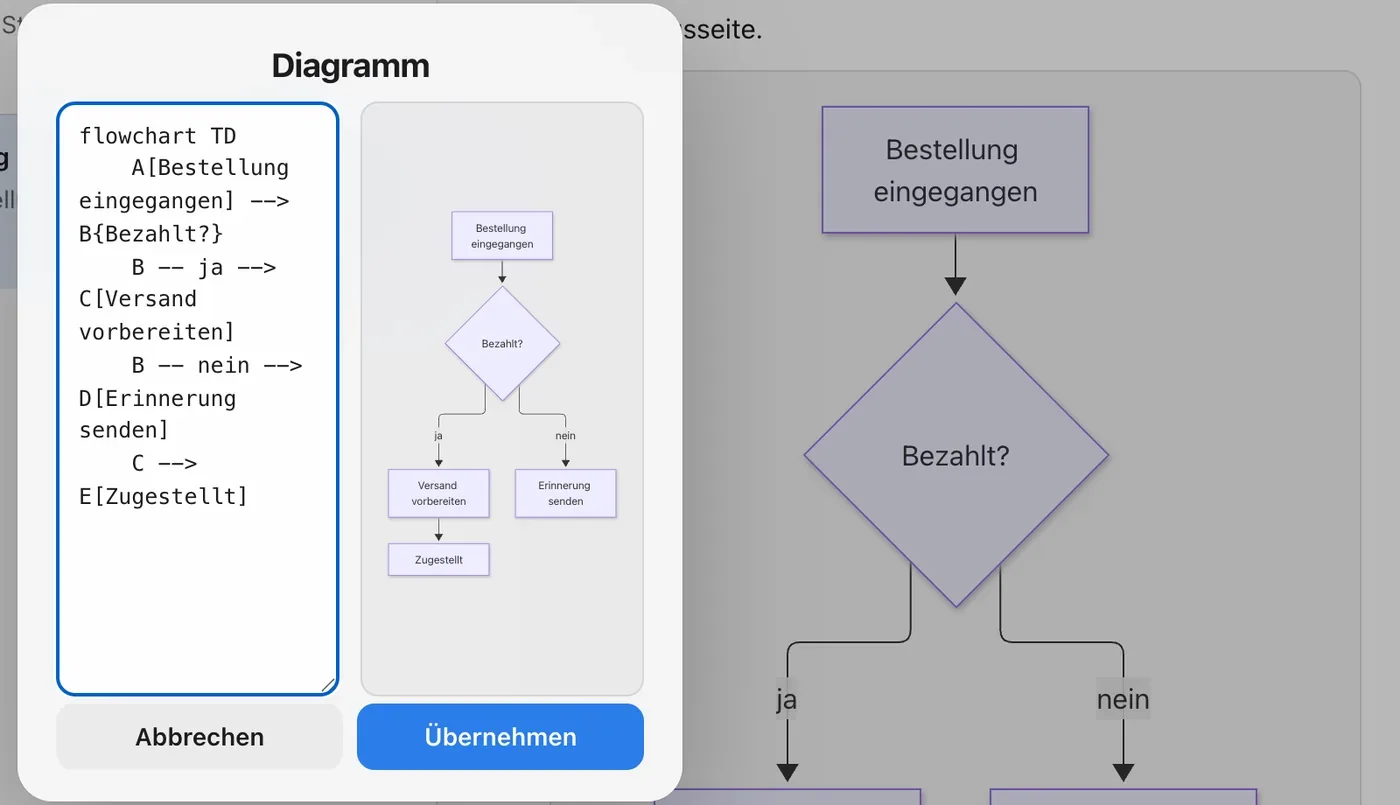
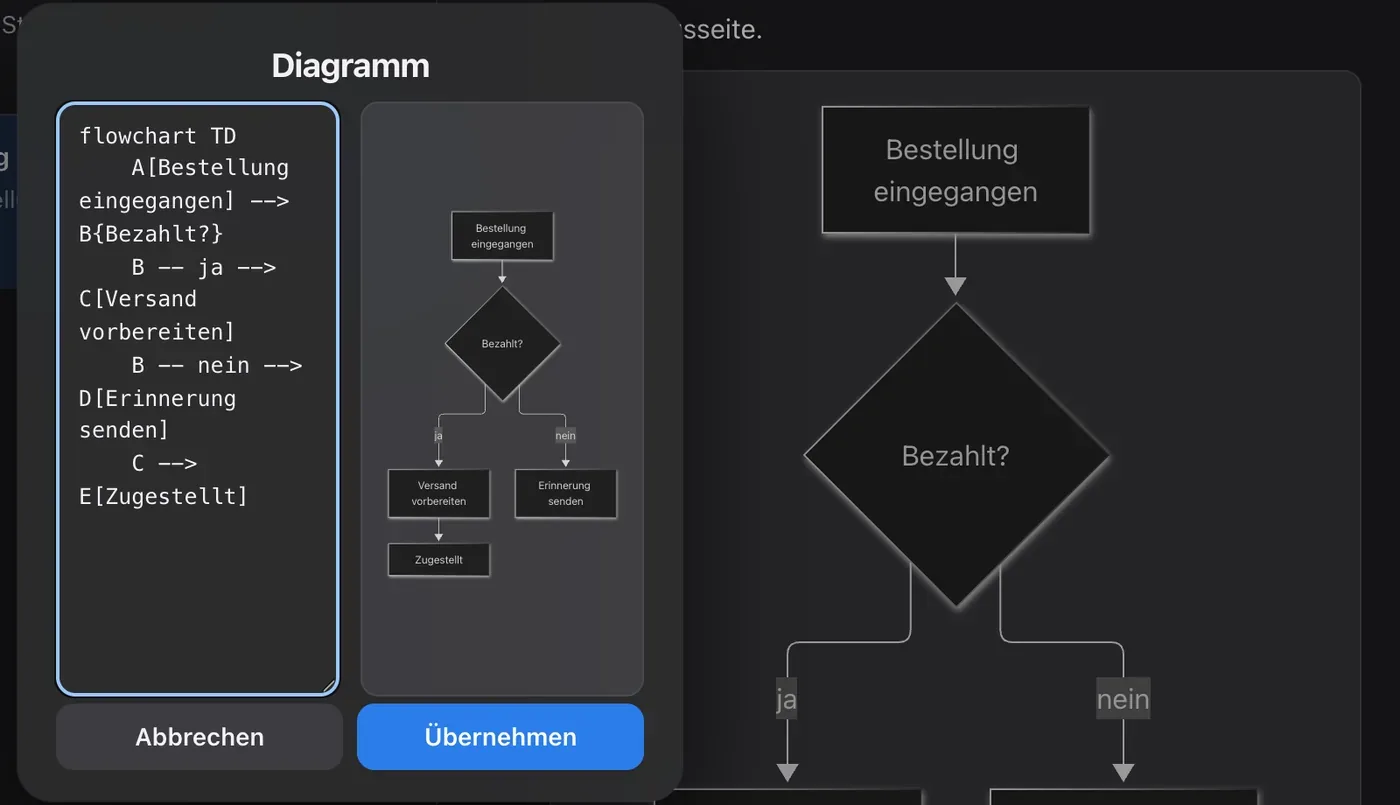
Diagrams
Use “/” → Diagram to add a flowchart. You describe it in Mermaid, a simple text language – the app draws the picture.
- Click the diagram to edit it
- With a preview as you type
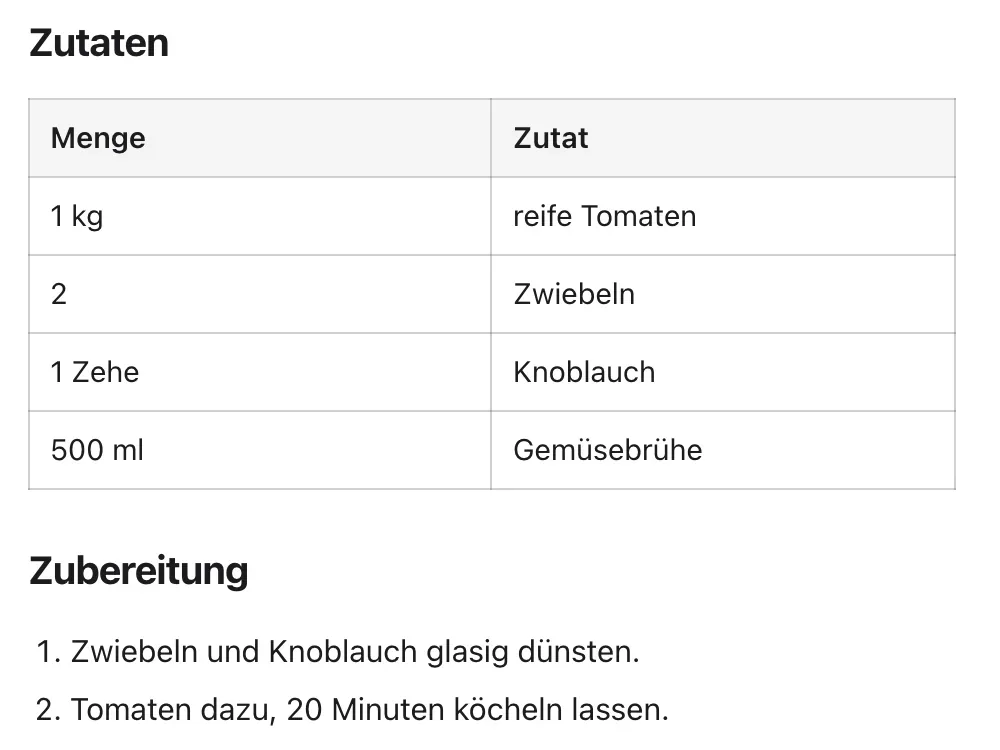
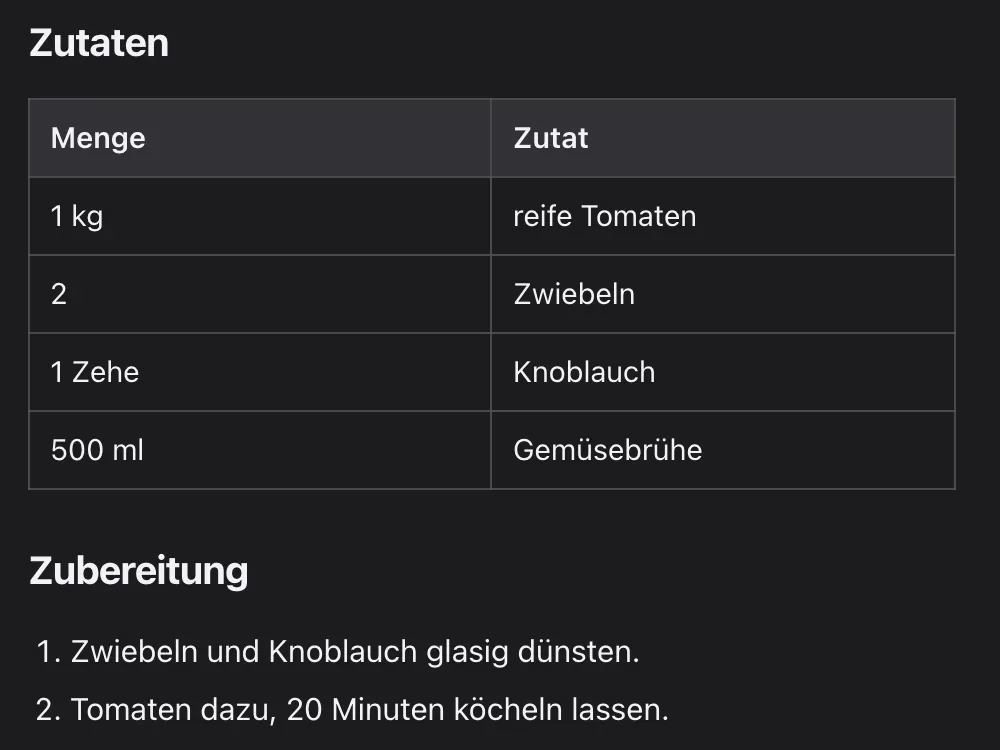
Tables
Via “/” or the toolbar. With the cursor inside, add or delete rows and columns, or toggle the header row.
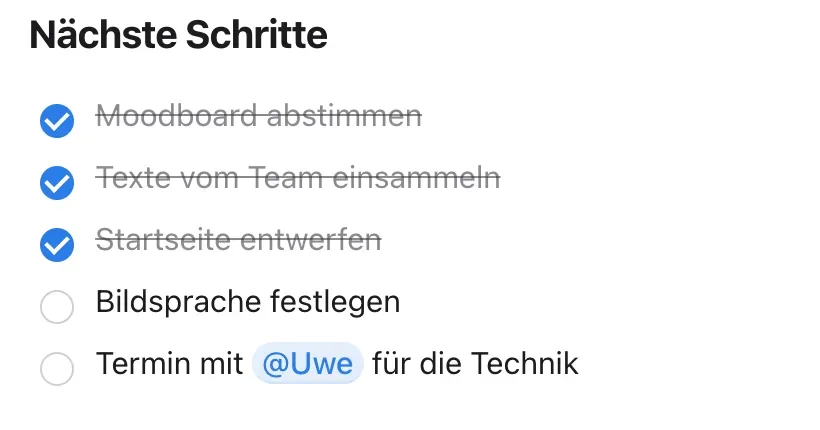
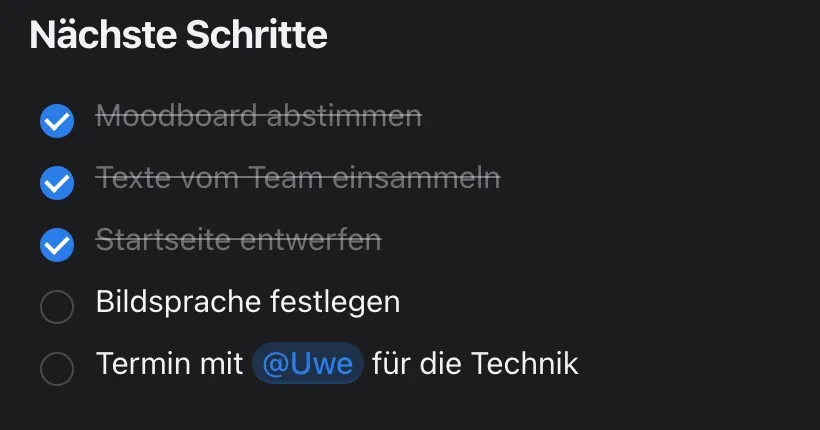
Checklists
A box in front of every item, one click ticks it off – done items are struck through. Handy for packing lists, shopping lists or a project’s next steps.
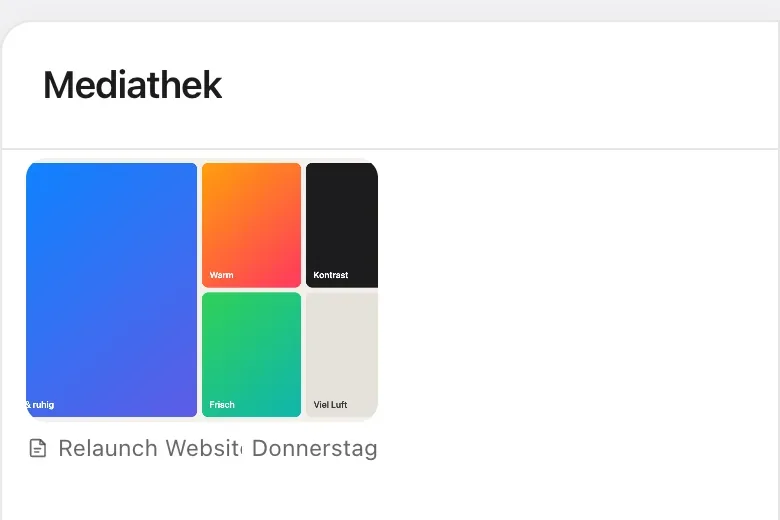
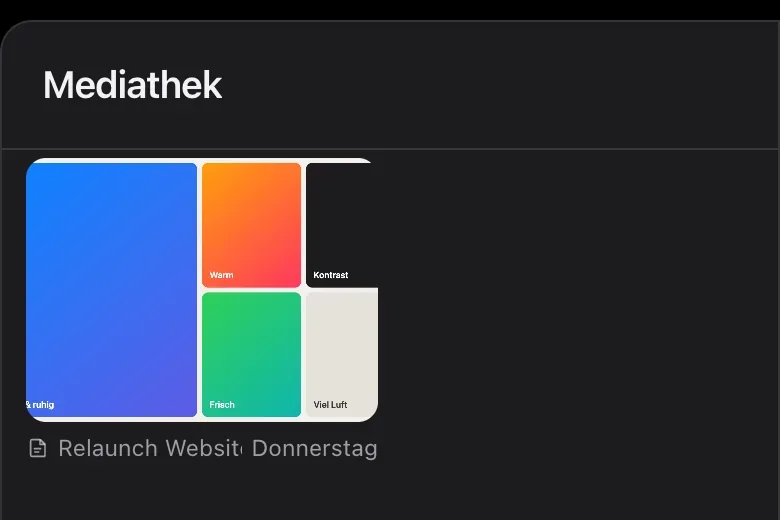
Images and attachments
Paste images from the clipboard or drop them in. You can attach any other file too. The media library shows it all at a glance – with the note it belongs to.
Templates
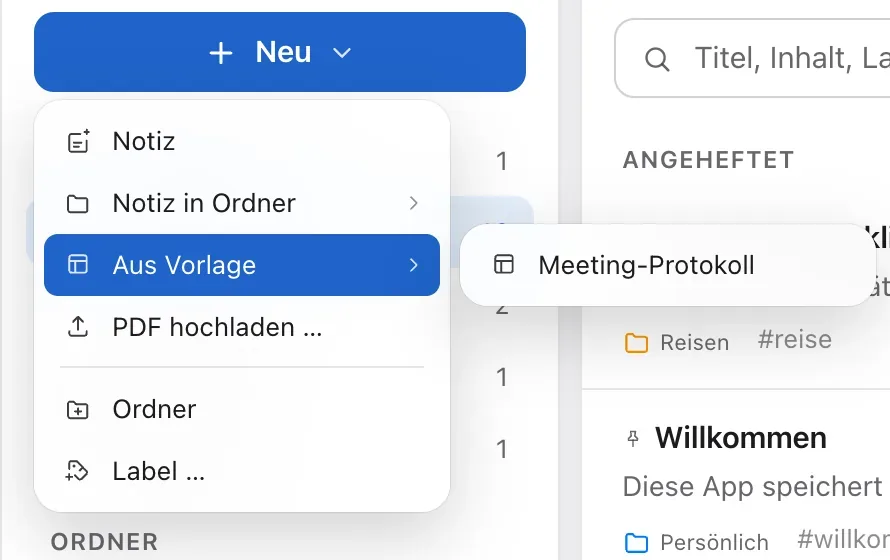
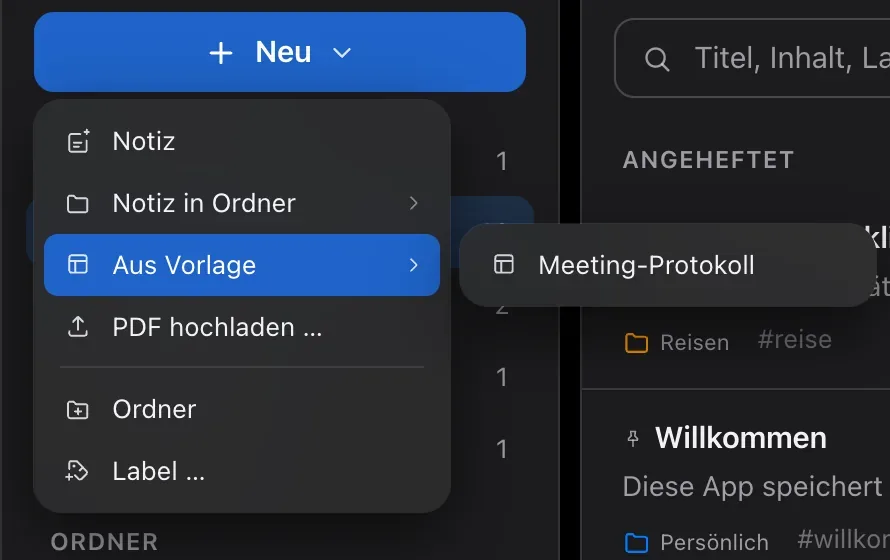
For meeting notes, weekly plans or checklists: save any note as a template, even a whole folder. Placeholders like date and weekday fill themselves in.
Templates
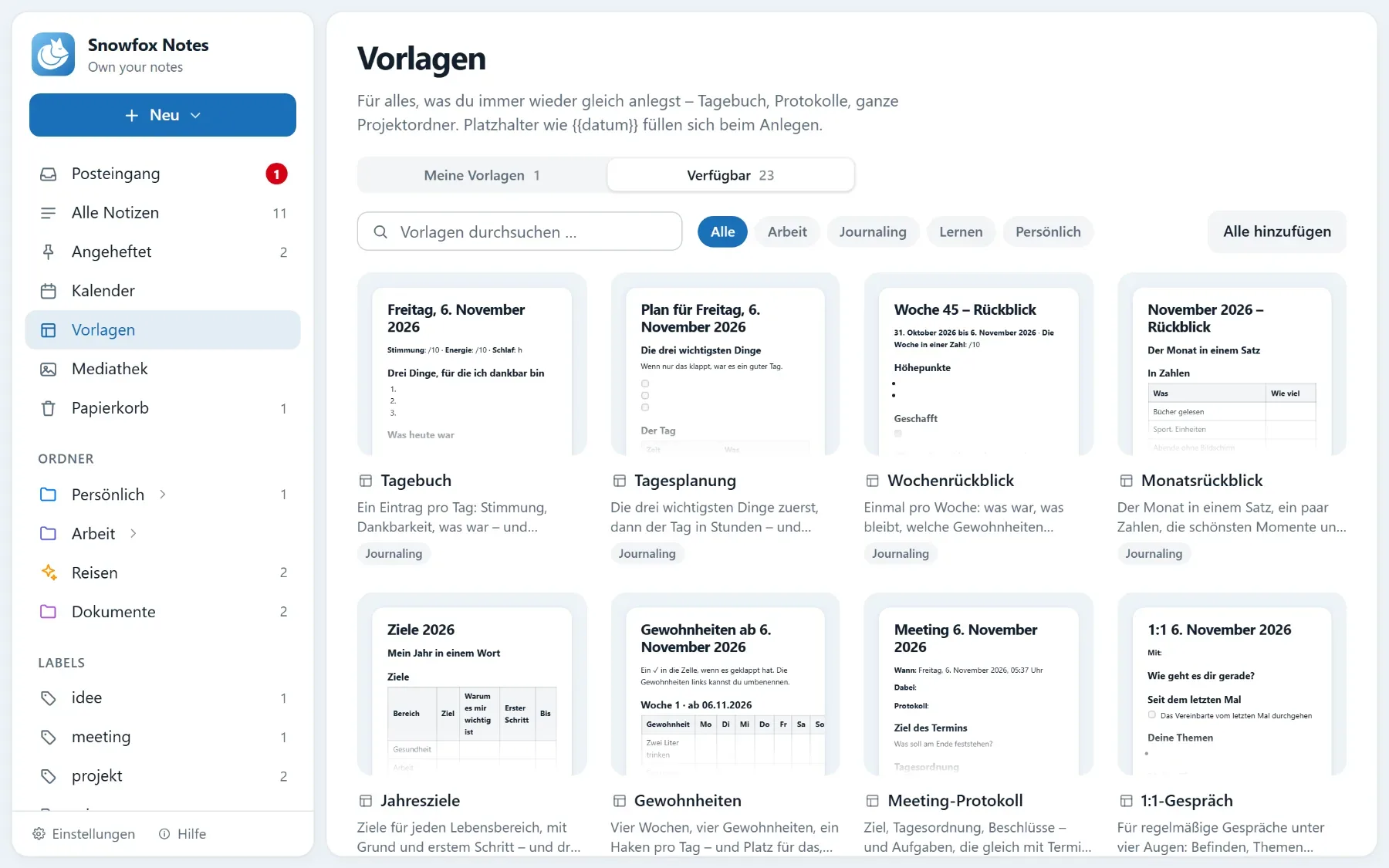
25 templates to start with.
25 templates come free with the app at launch – for work, journaling, learning and personal life, in German and English. More are added step by step through the app. A template can be a single note or a whole folder structure.
- Placeholders fill in the date, weekday or calendar week – with days added or taken away, too
- A template can put its notes straight in the right place, such as this year’s folder
- With packages you pass on templates as a file – and import ready-made packs
- Templates apply to the whole instance
Your format
Under the hood: plain Markdown.
So your notes belong to you, not to a format. Markdown is text with a few characters for headings and lists – readable in any other app, even twenty years from now.
Light and dark
An appearance that suits you.
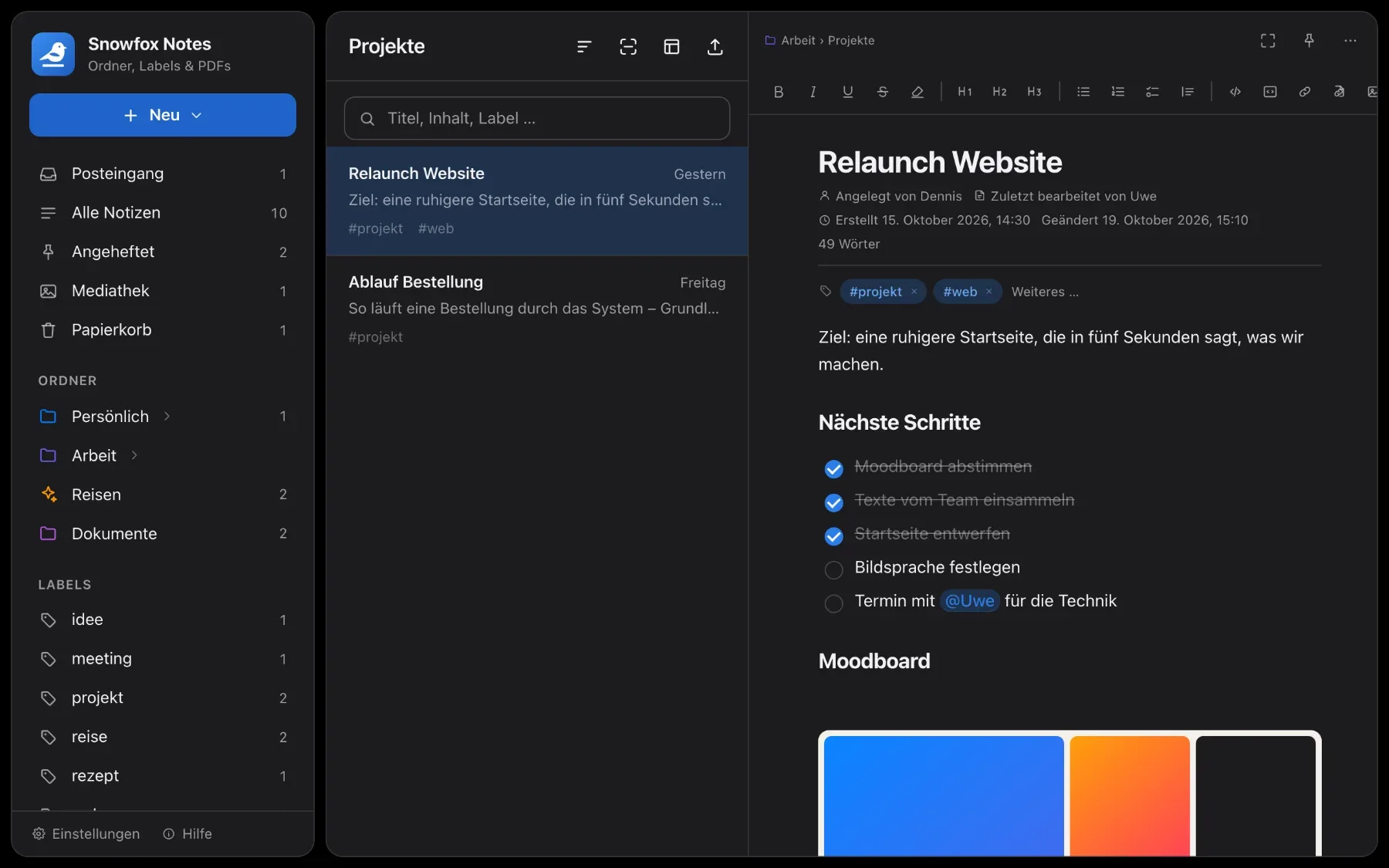
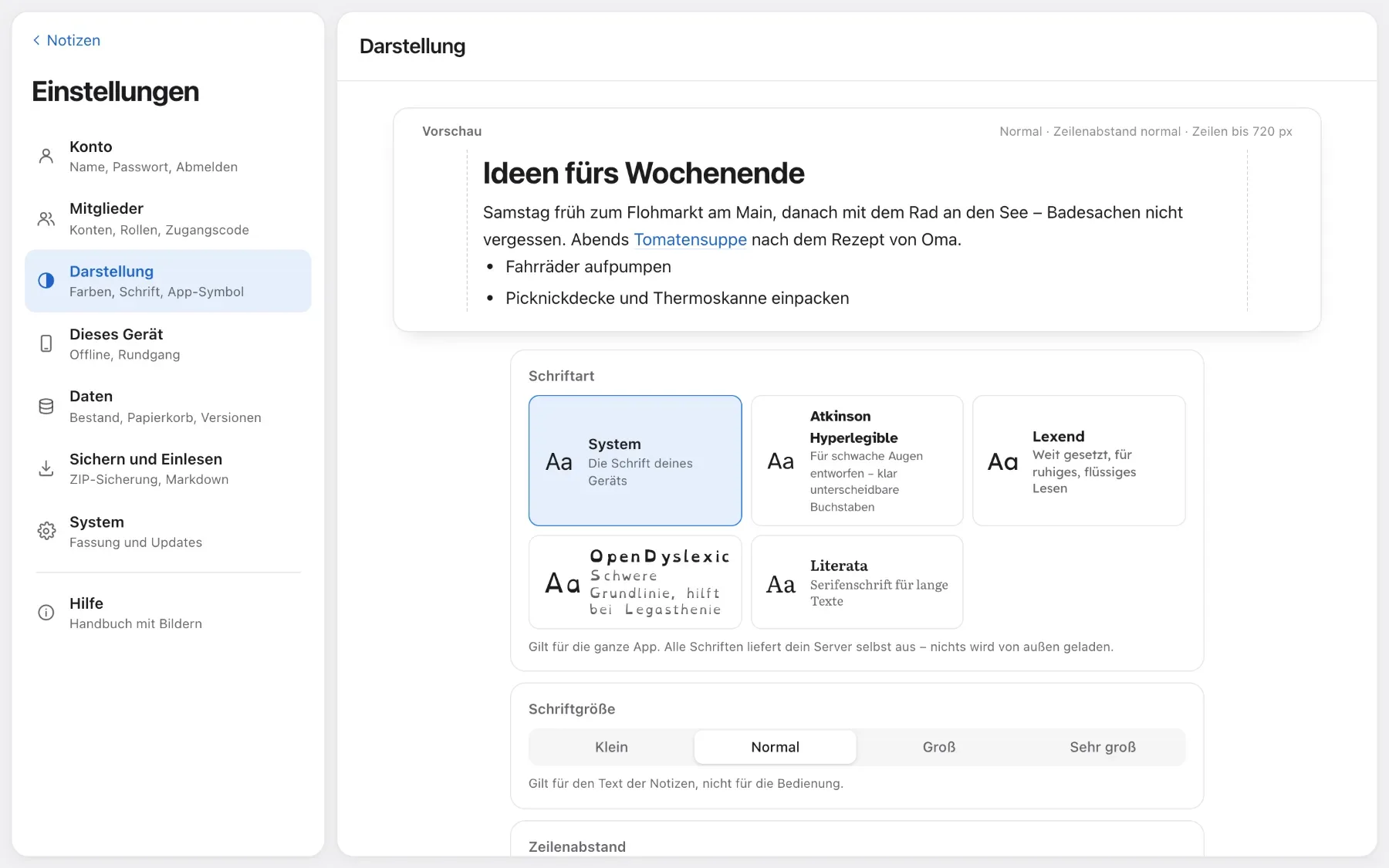
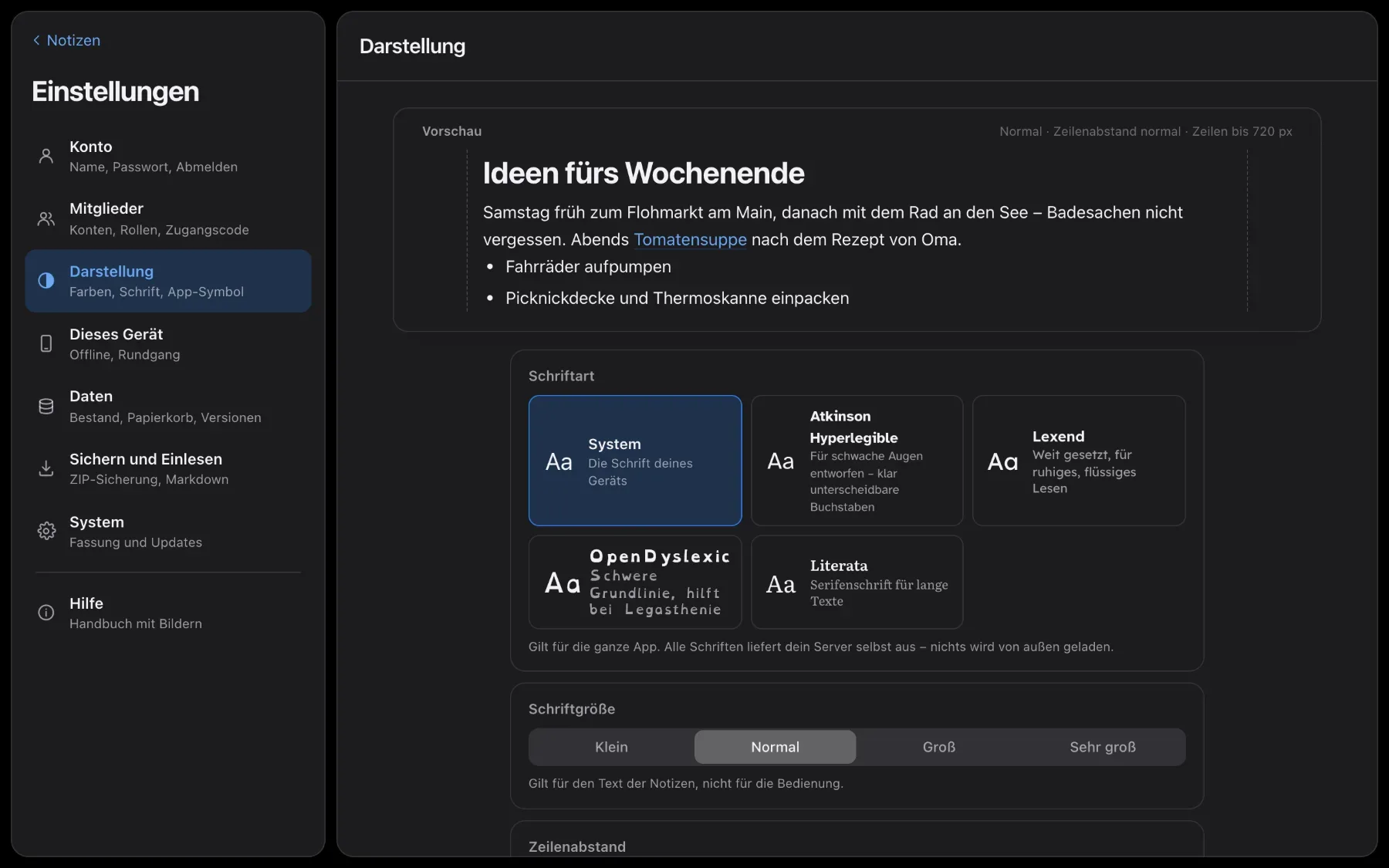
Light and dark mode, your own accent colour, font and line width. Plus, for the whole instance, your own name, logo and CSS.
- Follows your system, or always light or dark
- Readable fonts such as Atkinson Hyperlegible, Lexend or OpenDyslexic – served by your own server
- Font size, line spacing, higher contrast and reduced motion
- Your own app icon and name on the home screen
- For the whole instance: your own name, logo, colour, a welcome on the sign-in page and your own CSS
How to
Three things to start with
-
Create a new note
- Click New, then Note – or press ⌘N.
- Type a title and press Enter.
- Start writing. The note goes into the folder you have open and saves on its own.
-
Insert a table
- Type a slash “/” at the start of a line.
- Type “tab” – the list shows the table straight away. Press Enter to insert it.
- With the cursor in the table, add rows and columns from the toolbar.
-
Save a note as a template
- Open the note you want to use as a pattern.
- Choose ⋯ → Save as template.
- Create new notes from it under New → From template. Placeholders such as date and weekday fill themselves in.
Questions
Questions about the editor
Do I have to press “Save” anywhere?
No. Every change is saved to your server shortly after you type. If the server is briefly unreachable, your text stays in the editor and is sent again until it gets through.
Do I need to know Markdown?
No. You format with the toolbar or “/” and see the result straight away. Markdown is just the format Snowfox Notes saves in – so your notes stay readable in any other app.
What happens if two people edit the same note at once?
The text saved last wins. The overwritten version isn’t lost, though: it goes into the note’s version history.

Curious? Give it a try.
Snowfox Notes is free and open source. Download it and put it on your own web space – or let us host it for you from 1 December 2026.
Runs on any web space with PHP 8.4. No SSH needed.